


Best Tablets for Older Adults With Bad Eyesight in 2026


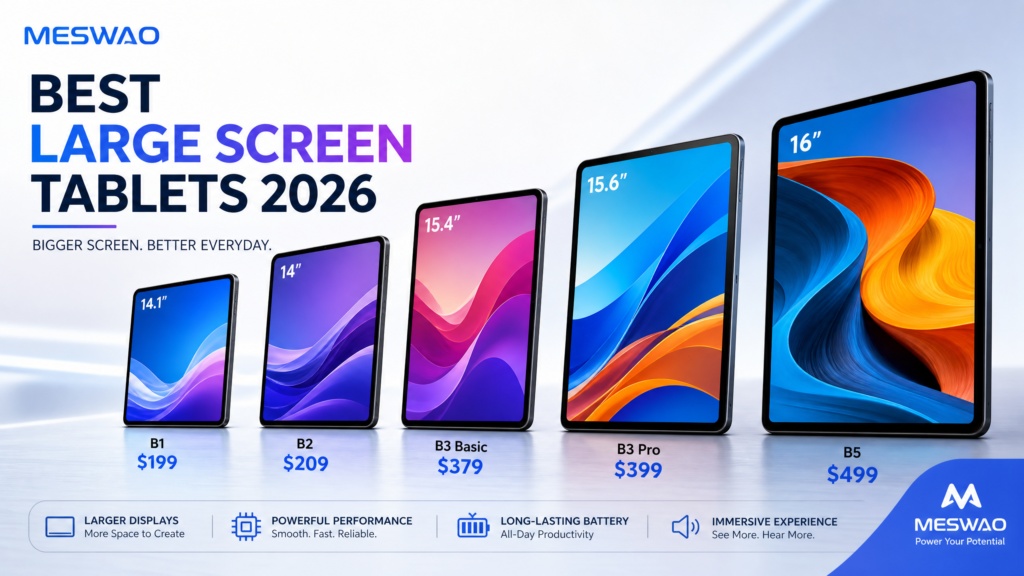
If you need one answer: the Meswao B3 Basic 15.6″ is the best-value large-screen Android tablet for an older adult with failing eyesight. At $379 it gives you a 34.5 cm-wide screen — about 2.3× the readable area of the 10-inch tablets most senior guides recommend — a 12,000 mAh battery that runs 10.5 hours of video, four loud speakers, and no monthly subscription. If budget comes first, the B2 14″ at $209 is the cheapest screen big enough to actually matter. If you want the largest screen an older adult can still handle, the B5 16″ at $459.
This guide is written for one specific situation: someone whose vision is getting worse, who finds small text and cluttered menus frustrating, and who does not want to pay a monthly fee to make a video call. Every specification below is taken from the official product specification sheets, and every recommendation has a price attached.
Why screen size beats every “senior mode” app
Most buying guides for older adults recommend 10- or 11-inch tablets. That advice made sense five years ago, when large Android tablets were rare and expensive. It no longer does.
The reason is simple geometry. When eyesight declines, the standard fix is to increase the font size. But on a small screen, bigger text means less content per screen and constant scrolling — so the tablet becomes harder to use, not easier. A physically larger screen lets you enlarge the text and still see a whole page, a whole photo album, or both sides of a video call at once.
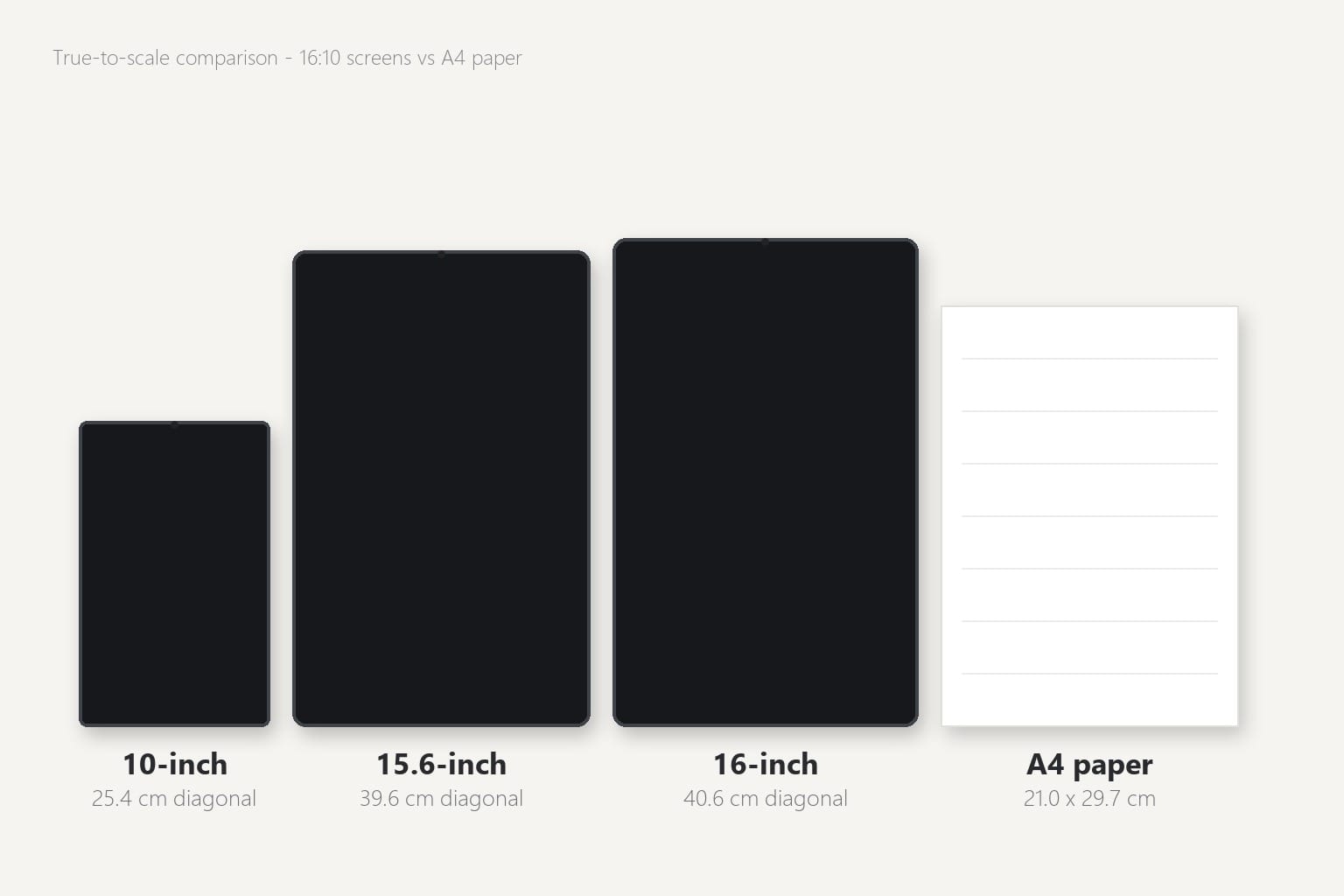
Here is the actual viewable screen area, measured in centimetres, for the sizes in question:
| Screen size | Aspect ratio | Screen width | Screen height | Area vs 10.1″ | Area vs A4 paper |
|---|---|---|---|---|---|
| 10.1″ | 16:10 | 21.8 cm | 13.6 cm | 1.00× | 0.48× |
| 14″ | 16:9 | 31.0 cm | 17.4 cm | 1.83× | 0.87× |
| 15.6″ | 16:9 | 34.5 cm | 19.4 cm | 2.27× | 1.08× |
| 16″ | 16:10 | 34.5 cm | 21.5 cm | 2.51× | 1.19× |
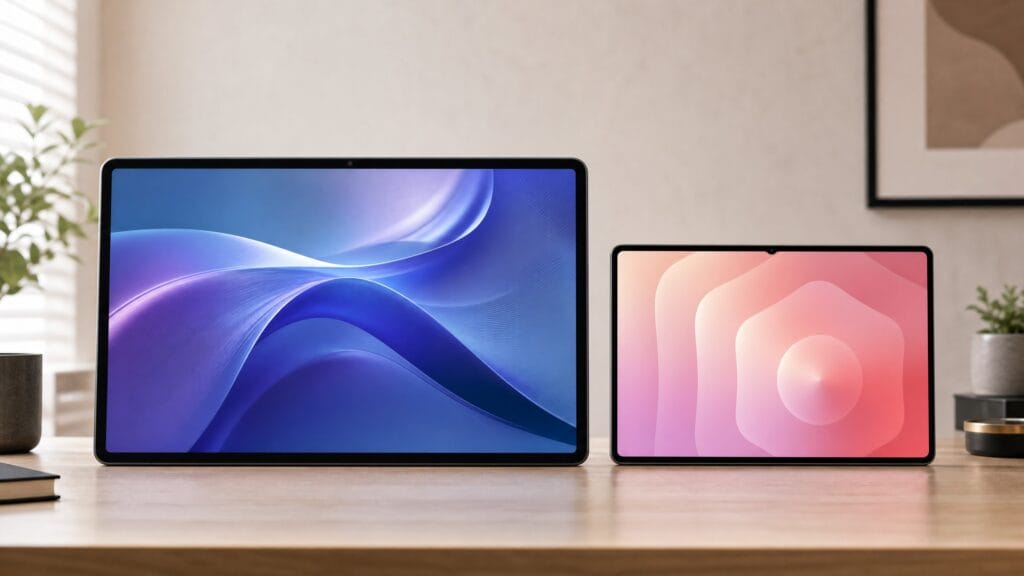
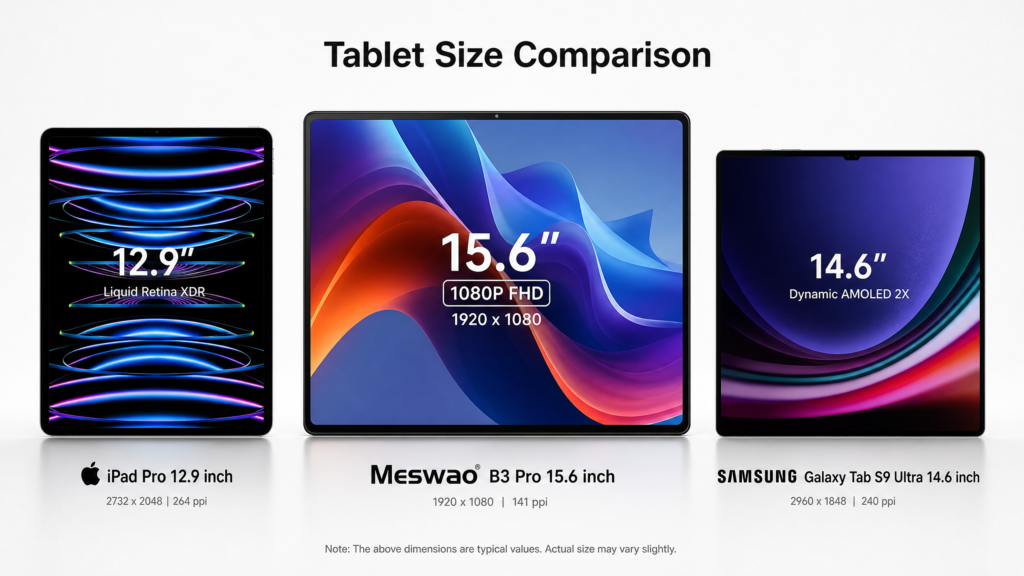
A 15.6-inch screen has 2.27 times the viewable area of a 10.1-inch screen, and it is slightly larger than a sheet of A4 paper. The 16-inch model goes further — 2.51× — because it uses a taller 16:10 panel. For a fuller breakdown of how each diagonal translates into real centimetres, see our tablet screen size comparison chart.
The 3 best large-screen tablets for older adults in 2026
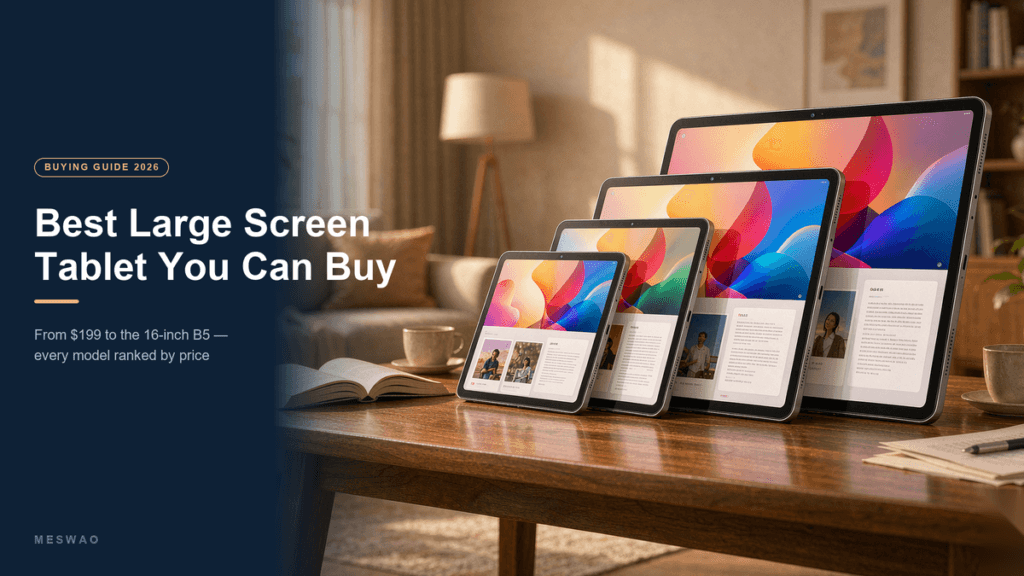
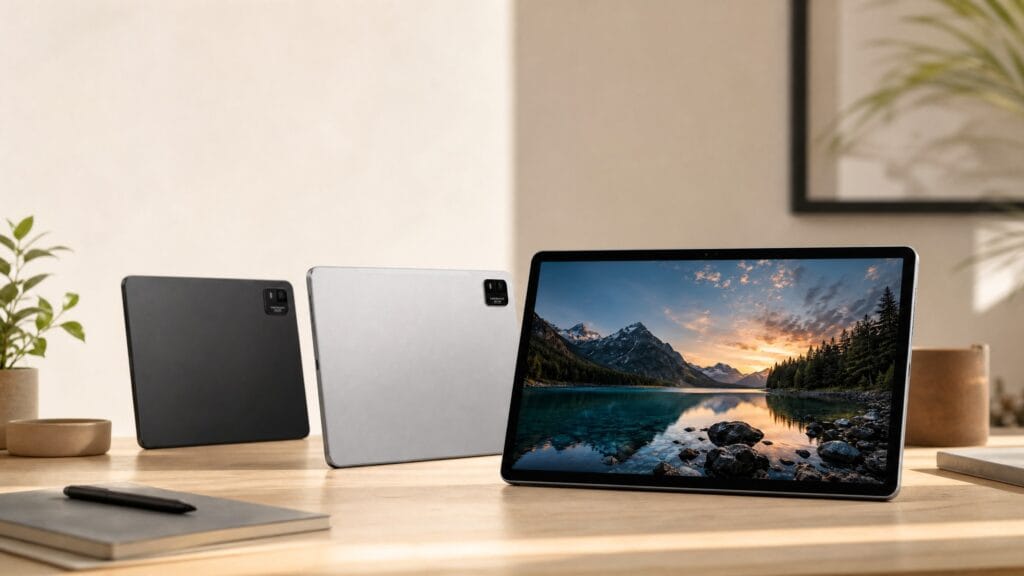
All three picks below share the same foundation: a MediaTek Helio G99 octa-core processor, four independent speakers, a 32 MP rear camera for video calls and photo scanning, Bluetooth 5.2, a reversible USB-C port, and microSD expansion up to 2 TB. What differs is screen size, battery, memory, and price.
| Model | Screen | Resolution | RAM / Storage | Battery | Charging | Weight | Price |
|---|---|---|---|---|---|---|---|
| B2 14″ | 14″ IPS, 16:9 | 1920×1080 | 6 GB / 128 GB | 10,000 mAh | 15 W | 1,025 g | $209 |
| B3 Basic 15.6″ | 15.6″ IPS, 16:9 | 1920×1080 | 6 GB / 128 GB | 12,000 mAh | 15 W | 1,065 g | $379 |
| B5 16″ | 16″ IPS, 16:10 | 1920×1200 | 16 GB / 256 GB | 12,000 mAh | 30 W | 1,120 g | $459 |
Best value overall: Meswao B3 Basic 15.6″ — $379
The B3 Basic is the pick for most older adults, and it is the one to buy if you are unsure. Its 15.6-inch panel is larger than a sheet of A4, which means a newspaper article, a recipe, or a full email thread fits on screen with the font enlarged — no pinch-zooming, no horizontal scrolling. It runs Android 14 with the Google Play Store, so video-call, streaming, and reading apps all install and behave normally.
Two details matter more than they look. The four independent speakers produce genuinely loud, clear sound, which matters for anyone who has started turning the television up. And the 12,000 mAh battery is rated for 10.5 hours of video playback or around 24 hours of browsing, so the tablet does not need to live next to a charger.
Body dimensions are 369 × 223 × 11 mm and it weighs 1,065 g — light enough to hold on a lap for a while, though most people end up using it with a stand, which we cover below.
Cheapest screen big enough: Meswao B2 14″ — $209
If the budget is fixed, the B2 14″ is the least expensive tablet in this guide that still delivers a meaningfully larger screen than a standard 10-inch model — 1.83× the area, at 31.0 × 17.4 cm. It also has one practical advantage for older users: at 1,025 g and 9.1 mm thick, it is the lightest of the three and the easiest to hold one-handed.
Two honest trade-offs. It runs Android 13 rather than 14 or 16, so it will stop receiving major Android updates sooner. And its 10,000 mAh battery is smaller than the 15.6- and 16-inch models’, though at 10.5 hours of video it is still a full day’s use.
The biggest screen: Meswao B5 16″ — $459
The B5 is the largest Android tablet Meswao ships, and the only one with a 16:10 panel — which is why it is 2.1 cm taller than the 15.6-inch models at the same width. That extra height is what makes a full A4 page, a newspaper layout, or two apps side by side genuinely comfortable rather than cramped. Resolution is 1920×1200, RAM is 16 GB with 256 GB of storage, and it ships with Android 16 and 30 W fast charging.
At 1,120 g it is 95 g heavier than the B2. That is not a problem on a lap or a stand, but it is past the point where most people want to hold it one-handed for an hour. If you are wondering whether that matters in your case, our honest review of the 16-inch B5 covers the ergonomics in detail.
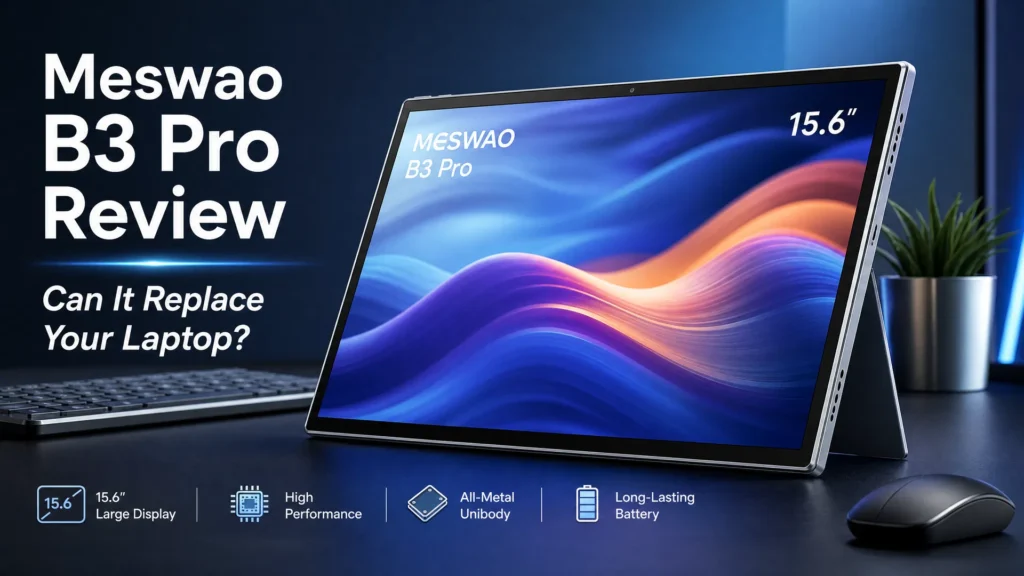
Is the B3 Pro worth $20 more than the B3 Basic?
For $399 — twenty dollars more than the B3 Basic — the B3 Pro 15.6″ doubles the storage to 256 GB, increases RAM to 8 GB, and adds Widevine L1 certification, which is what allows Netflix and other streaming services to play in full HD rather than standard definition. If the tablet will be used mainly for streaming, that $20 is the single best upgrade in this guide. For reading, video calls, and browsing, the B3 Basic is enough.
The 5 specs that actually matter for aging eyes
Spec sheets are long. These are the five numbers worth checking, in order of how much difference they make.
- 1. Screen width, not the diagonal. Two 15.6-inch tablets can differ in usable area if the bezels differ. What you want is roughly 34 cm of actual glass. That is what determines how much enlarged text fits on screen.
- 2. Resolution of 1920×1080 or better. Below that, enlarged letters lose their edges and look soft rather than bigger. All three picks above clear this bar; the 16″ B5 goes to 1920×1200.
- 3. Four speakers, not two. Dialogue clarity is the most common complaint after vision. Four independent speaker chambers give noticeably louder, fuller sound without a Bluetooth speaker.
- 4. A 12,000 mAh battery with fast charging. 10.5 hours of video is a full day without hunting for a cable. Fast charging matters because a tablet left unplugged overnight is a tablet that is dead by lunch.
- 5. Reversible USB-C and microSD. A reversible connector means the plug goes in either way up — a small thing that removes a daily frustration. MicroSD up to 2 TB means family photos and downloaded films are stored locally, not behind a cloud subscription.
One more thing worth stating plainly: none of the tablets above requires a monthly subscription. Devices marketed specifically at seniors often do — and the fee is usually $10 to $20 a month for what is, underneath, a standard Android tablet with a simplified launcher. That is a recurring cost of $120 to $240 a year for a feature that free Android accessibility settings largely replicate.
How to set up big text and a simple home screen
The single biggest improvement you can make takes about two minutes and costs nothing. These are the exact paths on Android 13, 14, and 16.
Make the text genuinely large
- Settings → Display → Display size and text → Font size — drag to the largest setting. This changes text everywhere, in every app.
- Settings → Display → Display size and text → Display size — this enlarges icons and buttons as well as text. Setting it one or two steps up from default makes touch targets much easier to hit.
- Bold text is a separate toggle in the same menu. Turning it on thickens every letter on the system and is often the single most effective change for low vision.
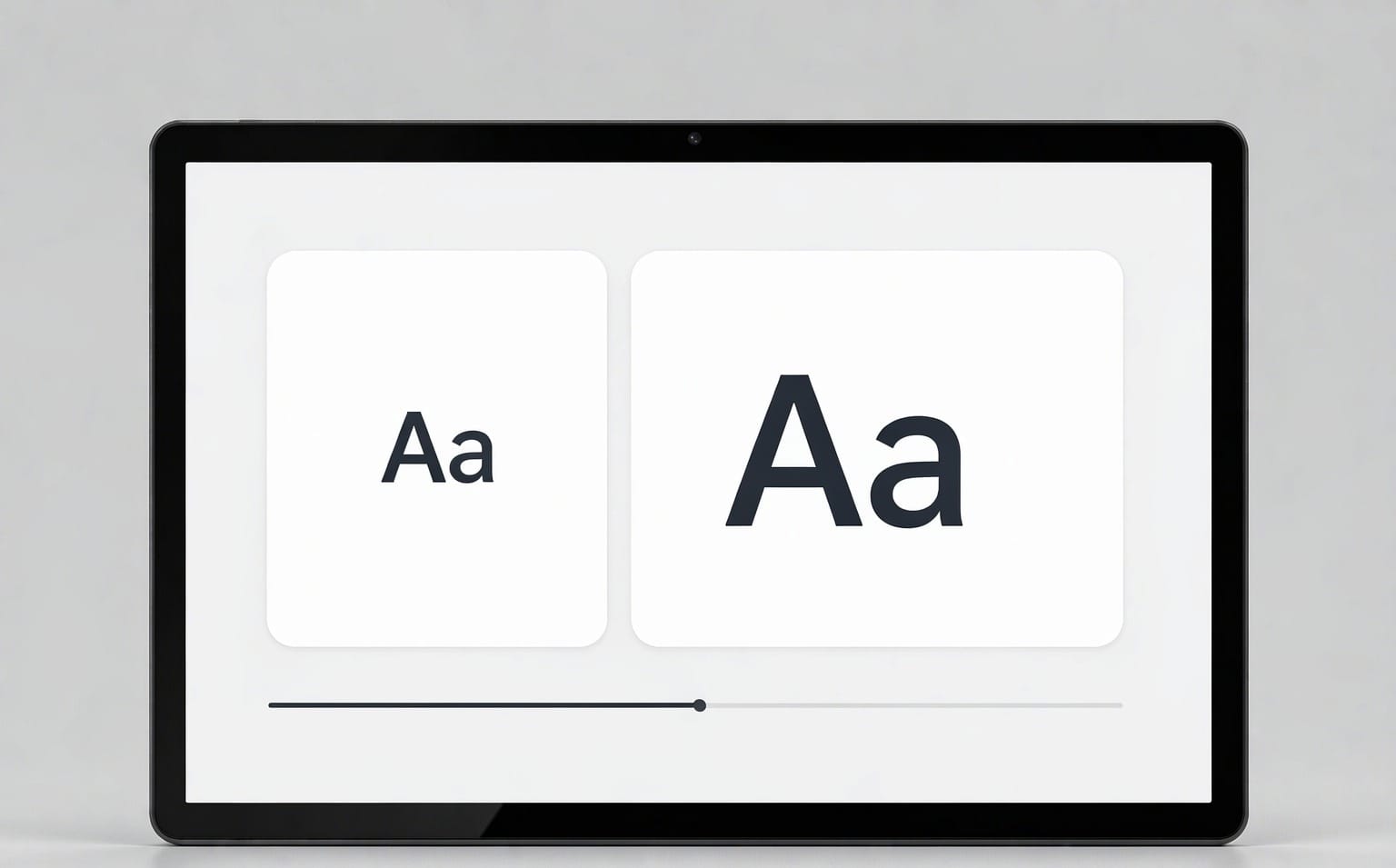
Because the screen is 15.6 or 16 inches, you can push the font to its largest setting and still fit a full email or news article on screen. Do the same thing on a 10-inch tablet and you end up scrolling every two lines.
Strip the home screen back
- Long-press an app icon → Remove. Take everything off the home screen except the four to six things they actually use.
- Long-press the wallpaper → Widgets — add a large clock and a weather widget. Both are glanceable and require no navigation.
- Disable notifications for everything non-essential (Settings → Notifications → App settings). A tablet that rarely interrupts is a tablet that feels calm to pick up.
- Put the video-call app in the dock at the bottom, where it stays fixed and visible on every home screen page.
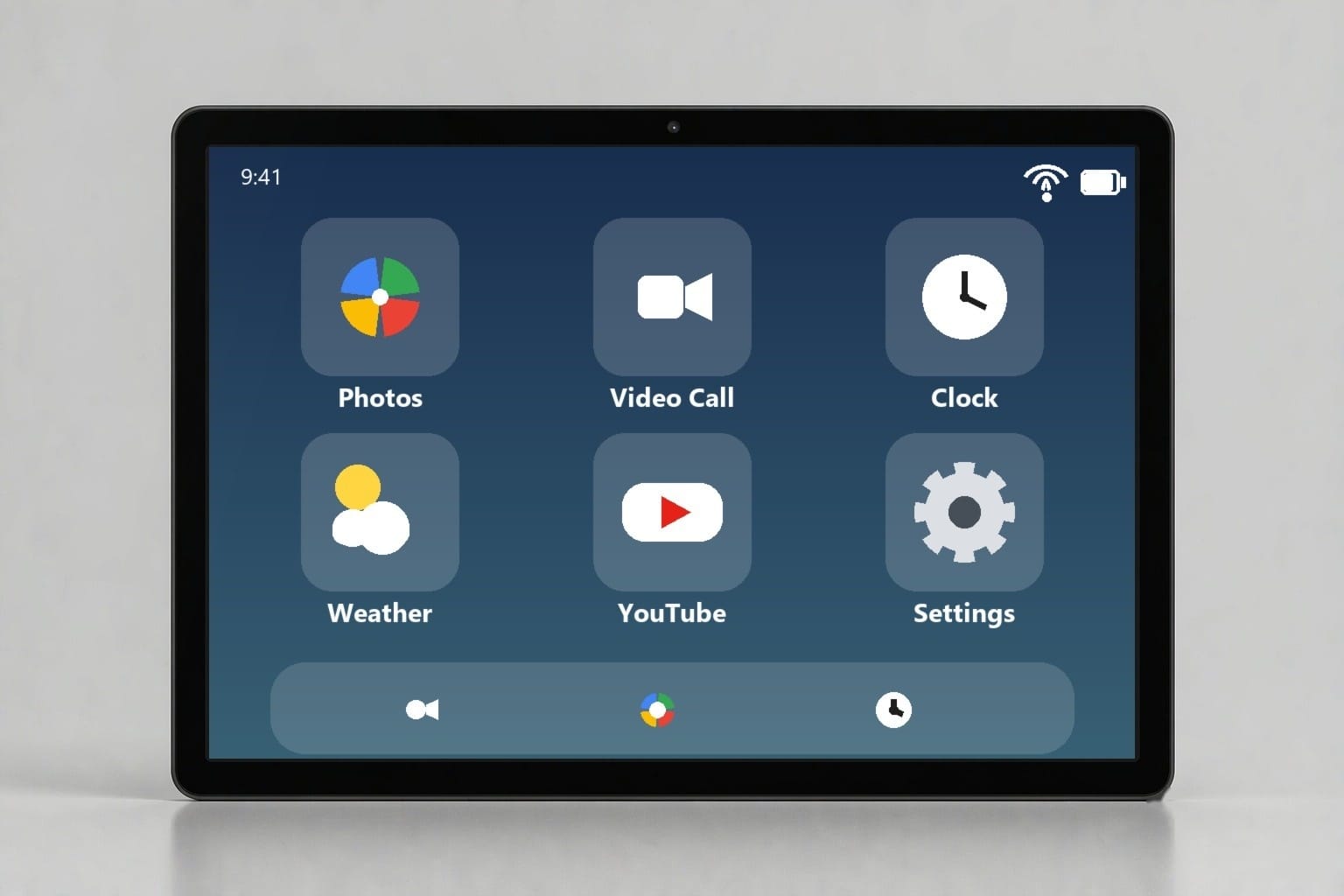
If you would rather have a written walkthrough to hand to someone, our tablet setup guide for the elderly covers the same steps in more detail, including how to add family contacts as one-tap shortcuts.
If eyesight is the main problem: 7 extra settings and accessories
Beyond font size, Android has a set of accessibility tools that most people never open. On a large screen they work considerably better than they do on a phone.
- Magnification (Settings → Accessibility → Magnification). Triple-tap the screen to zoom into any part of it. Useful for reading a medicine label or a photograph’s fine detail.
- Select to Speak (Settings → Accessibility). Tap any text on screen and the tablet reads it aloud. Helpful on days when the eyes are more tired than usual.
- TalkBack provides full spoken navigation for anyone whose vision makes touch navigation unreliable.
- High-contrast text and Dark theme (Settings → Display). High contrast thickens and darkens letter edges; dark theme reduces glare in the evening.
- Reduce animations (Settings → Accessibility → Remove animations). Removes the sliding and zooming transitions that can be disorienting.
- A matte, anti-glare screen protector. Reflections are the most common reason a bright screen is still hard to read. A matte finish diffuses window and lamp glare, and it also makes the glass feel more like paper under the finger.
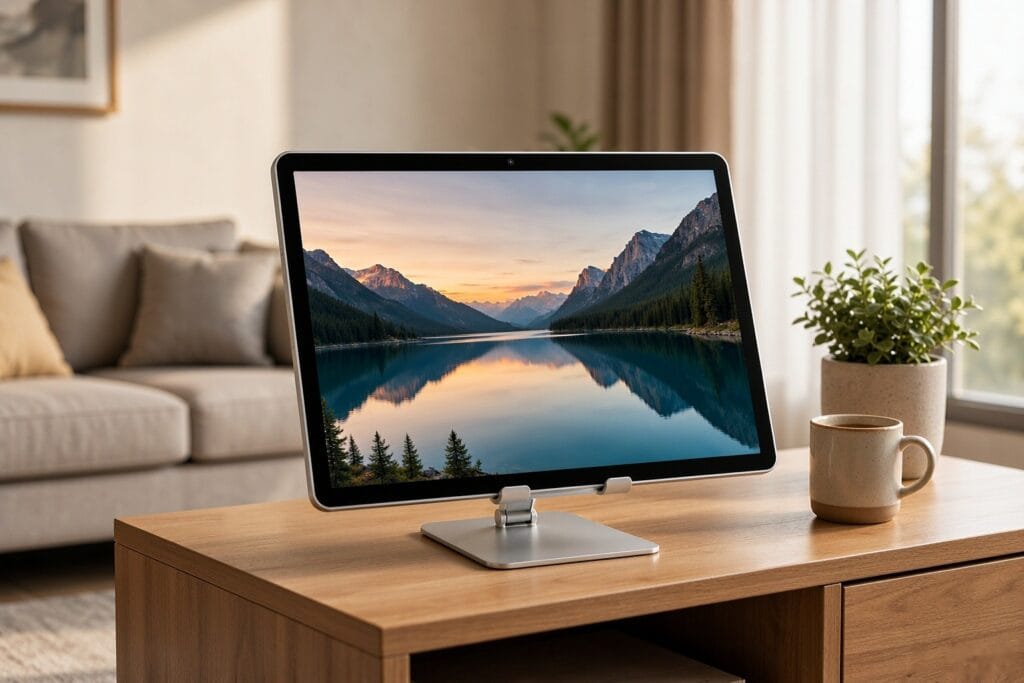
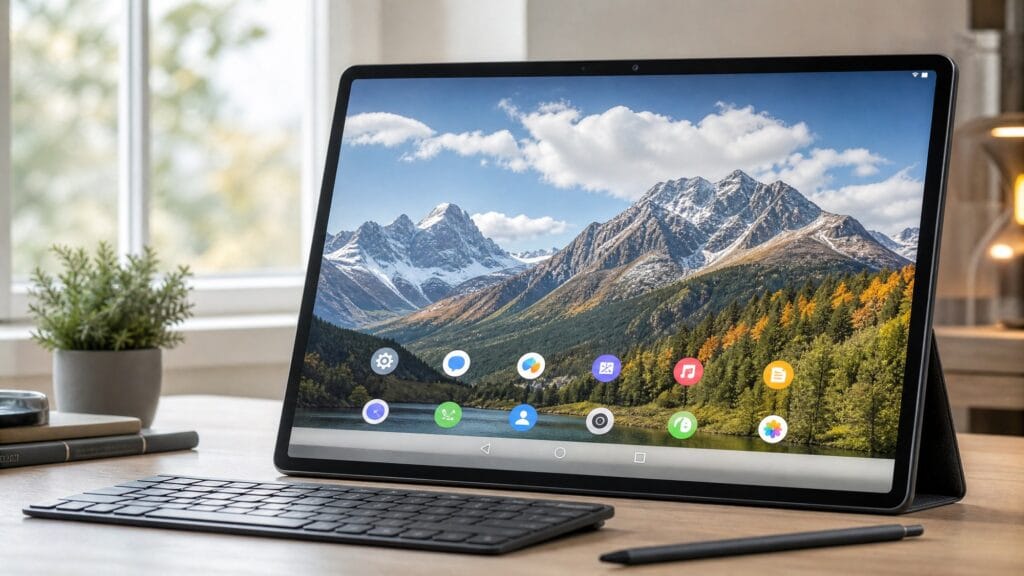
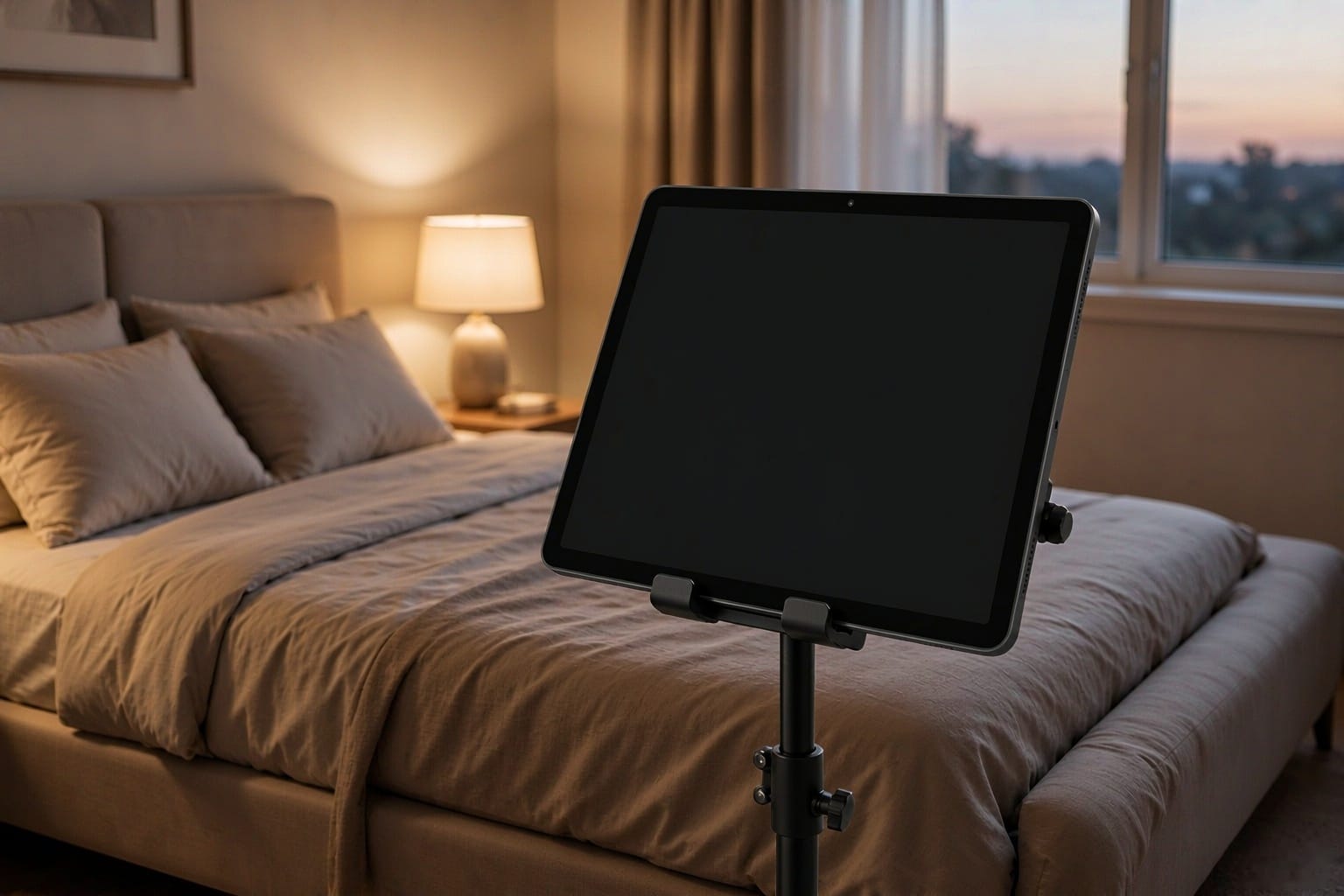
- An adjustable stand. At roughly 1.1 kg, a 15.6- or 16-inch tablet is better on a stand than in the hands for long sessions. A floor stand beside an armchair or a bed puts the screen at eye level without anyone having to hold it, which also keeps the hands free for a cup of tea. Our setup guide includes stand recommendations.
What about an iPad?
An iPad is a legitimate choice, and Apple’s accessibility tooling is excellent. The honest comparison is one of screen size per dollar.
The largest iPad Apple currently sells has a 13-inch display and starts at well over $1,000 once you add a case and any storage upgrade. The most common recommendations for seniors — the 10.9-inch iPad or the 11-inch iPad Air — have less viewable area than the $209 B2 14″ in this guide. For someone whose primary need is a large, readable screen for video calls, reading, and streaming, an Android tablet at this price buys considerably more glass.
Where the iPad still wins is long-term software support and the tightness of its ecosystem. If the household is already all-iPhone, that continuity has real value. If it is not, the size-per-dollar argument is hard to argue with. We compare the two platforms in more depth in iPad vs Android tablets.
For most people, a 15.6-inch Android tablet with a 1920×1080 IPS panel, four speakers and no subscription – the Meswao B3 Basic at $379 is the reference pick. The two things that matter most are physical screen width (roughly 34 cm) and a resolution of 1920×1080 or better.
Usually not. A 10.1-inch screen has a viewable area of about 297 cm2 – a little over half a sheet of A4. A 15.6-inch screen has 671 cm2, or 2.27 times as much, so enlarged text still fits a whole page on screen.
No. The B2, B3 Basic, B3 Pro and B5 are standard Android tablets that work on home Wi-Fi with no ongoing fee. Senior-specific devices often charge $10-$20 a month for what free Android accessibility settings largely replicate.
Yes. Go to Settings > Display > Display size and text. Font size enlarges text in every app, Display size enlarges icons and buttons too, and Bold text thickens every letter. On a 15.6- or 16-inch screen you can push all three to maximum and still fit a whole article on screen.
16 inches is the practical ceiling for a handheld tablet – about 34.5 x 21.5 cm of viewable area, or roughly 1.2 sheets of A4. Anything larger stops being something you can pick up.
Between $209 and $459 for a genuinely large-screen Android tablet in 2026: B2 14-inch $209, B3 Basic 15.6-inch $379, B3 Pro 15.6-inch $399, B5 16-inch $459.
At 1,120 g it is tiring to hold one-handed for an hour, which is why it is normally used on a lap, a table or a floor stand. If one-handed use is the priority, the 1,025 g B2 14-inch is the lightest option.
Partly. You can pre-configure everything before handing it over – install only the needed apps, set font and display size, strip the home screen and add one-tap contact shortcuts. After that, screen-sharing apps such as Google Meet let you guide them through anything else.
The bottom line
For an older adult whose vision is declining, the tablet that gets used is not the one with the best marketing or the most polished brand — it is the one where the text is big enough to read without effort, the sound is loud enough to hear without a remote, and nothing asks for a monthly payment.
A 15.6- or 16-inch Android tablet delivers all three for $379 to $459, which is less than half the cost of the large iPad most guides default to recommending. Start with the B3 Basic 15.6″ if you want the balanced choice, the B2 14″ if budget is fixed, or the B5 16″ if you want the largest screen available. You can browse the full range in our large screen tablet category.
If you are still weighing sizes, our best large screen tablets for seniors guide ranks the full line-up, and why a 15.6-inch tablet is the best choice for seniors goes deeper on the screen-size decision specifically. For video calls with grandchildren, see the best tablet for video calls.