

Tablets for Nursing Homes and Care Homes: The 2026 Activities and Games Guide

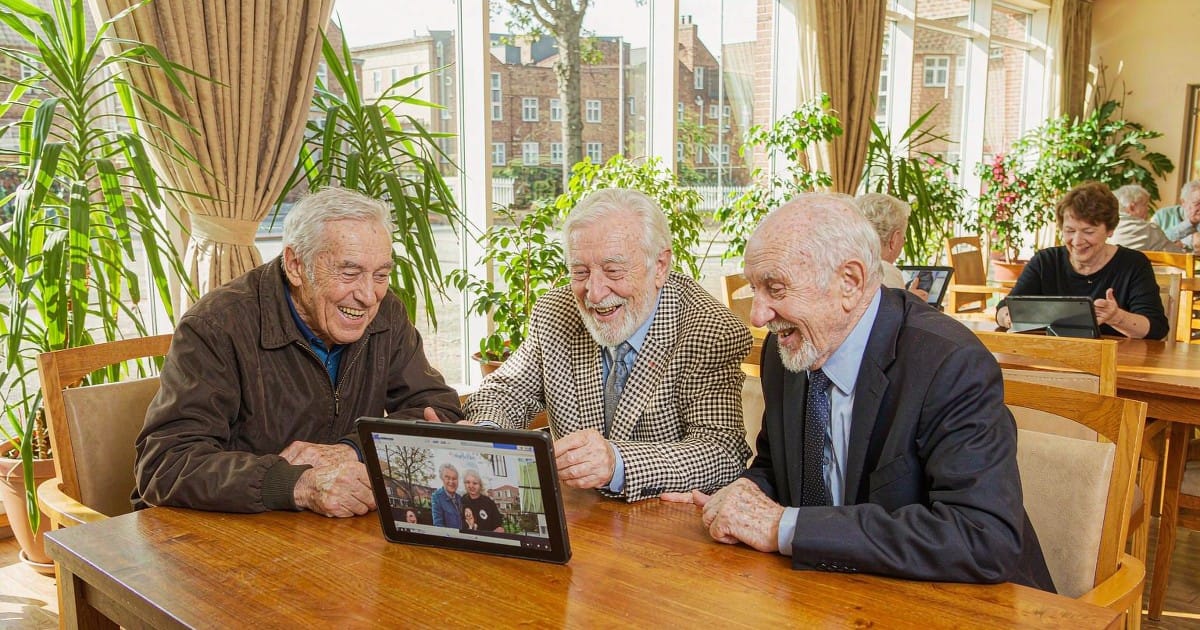
Short answer: for a shared care-home tablet, buy a large-screen Android tablet (14″–16″) rather than a standard iPad. A bigger screen is the single feature that changes how many residents can take part in a group activity at once, and large Android tablets cost roughly half to a third of a comparable iPad — which matters when you are equipping four rooms instead of one. Budget $199–$459.99 per device, add a stand and a screen protector, and expect 30 minutes of setup per tablet.
That is the whole recommendation. The rest of this guide explains what care homes actually use tablets for, which specs matter in a lounge full of people rather than on a single lap, and how to set one up so residents and staff can both use it without breaking anything.
Why care homes are adding tablets to the activities calendar
Care home activity programmes have always needed things that a group can do together — bingo, singalongs, quizzes, reminiscence boxes. A tablet is unusual because it can do all of those, plus one thing no other activity can: put a resident’s family on screen, life-size, in the middle of the room.
Three practical shifts have made shared tablets routine in care environments:
- Video calling stopped being a special event. During visiting restrictions it was the only contact route; it stayed because families dispersed and residents moved in from further away.
- The activity toolkit went digital. Memory apps, reminiscence photo archives, karaoke playlists, chair-exercise videos and virtual tours are now standard activity ideas, and most of them are free.
- Staff documentation moved to screens. Care planning, eMAR and handover tools increasingly assume a tablet in the corridor.
A shared tablet in a communal lounge is doing a different job from a personal tablet in a bedroom. That is the key distinction — and it is where most buying advice goes wrong.
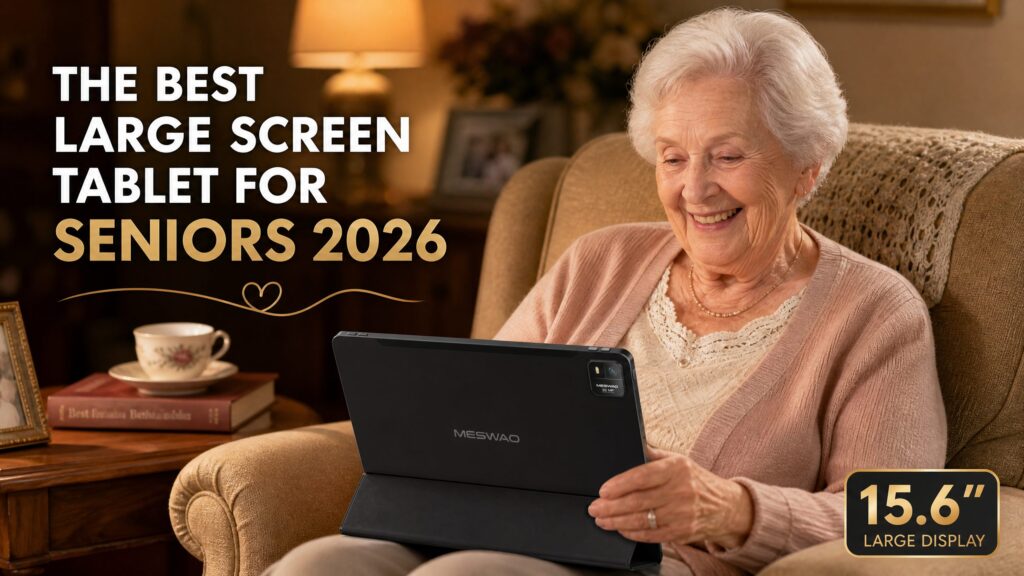
if you are buying a tablet for one specific older adult to use privately, read our large-screen tablet buying guide for seniors instead. This article is written for the shared, group use case.
What a care-home tablet actually gets used for
1. Group video calls with families
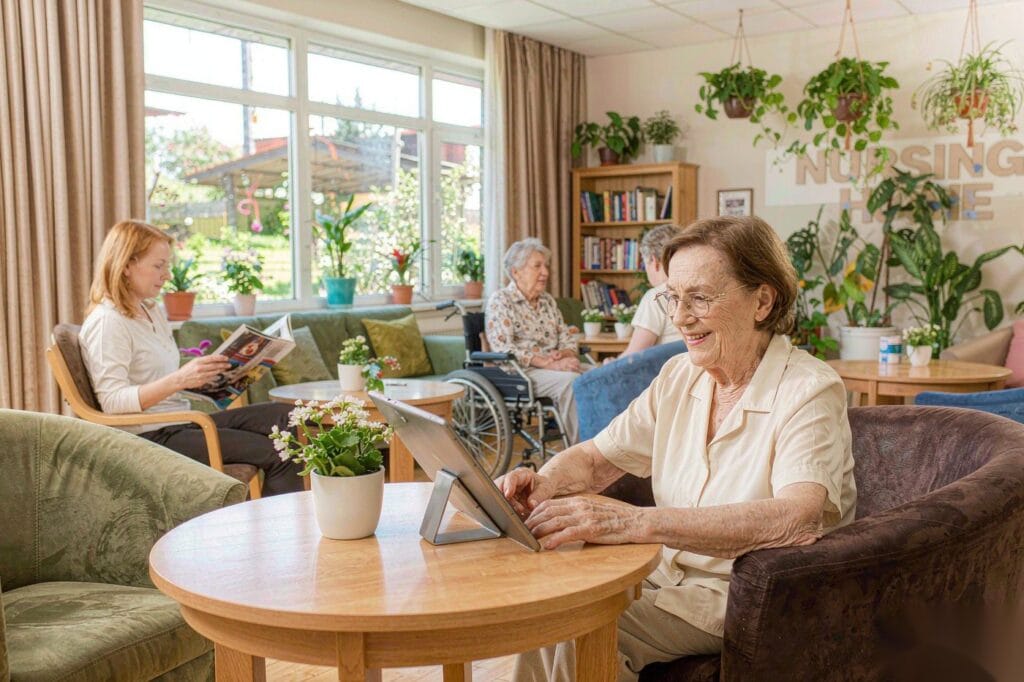
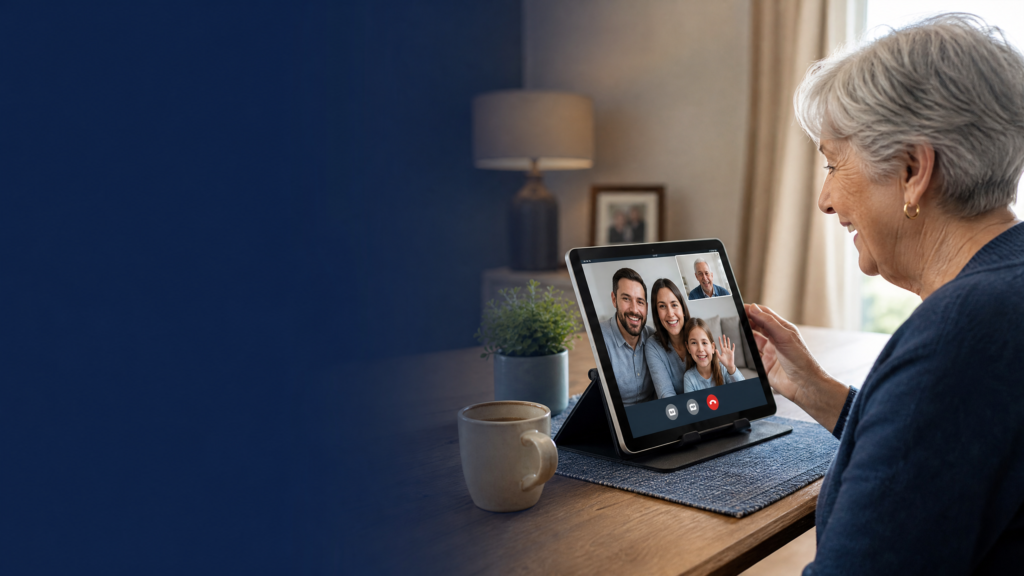
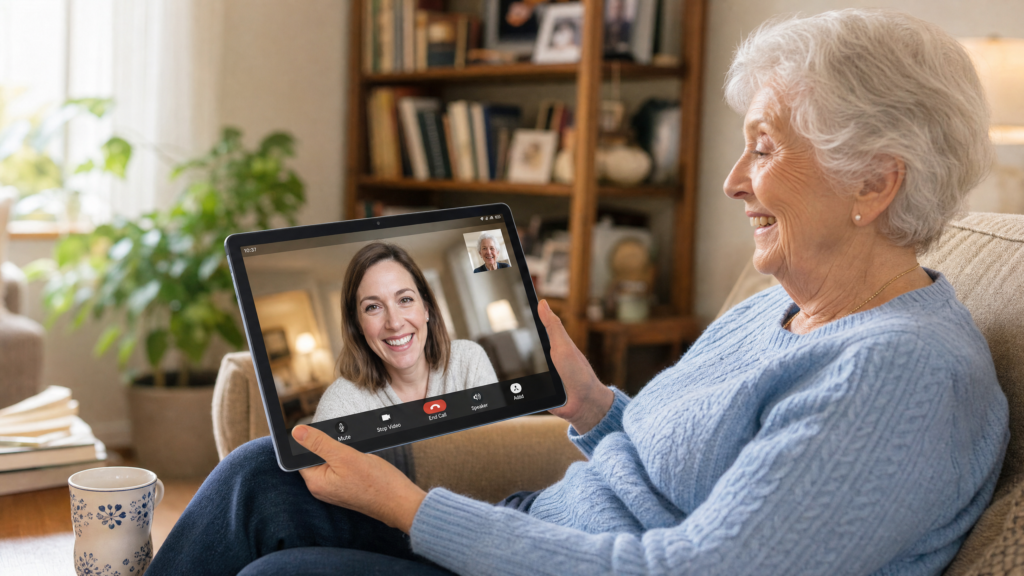
Six residents, one table, one screen, one call. This is the highest-value use, and the one that most depends on screen size. A 10″ tablet works for one person holding it; a 15.6″ or 16″ tablet on a stand lets four to six people see their relative at the same time without passing anything around — which matters when hands, eyesight or patience are limited.
Practical notes: use a group-capable app (Zoom, Google Meet, WhatsApp video all work on Android), set the tablet on a floor or table stand at eye level, and keep a staff member or volunteer nearby for the first minute.
2. Cognitive games and dementia-friendly activities
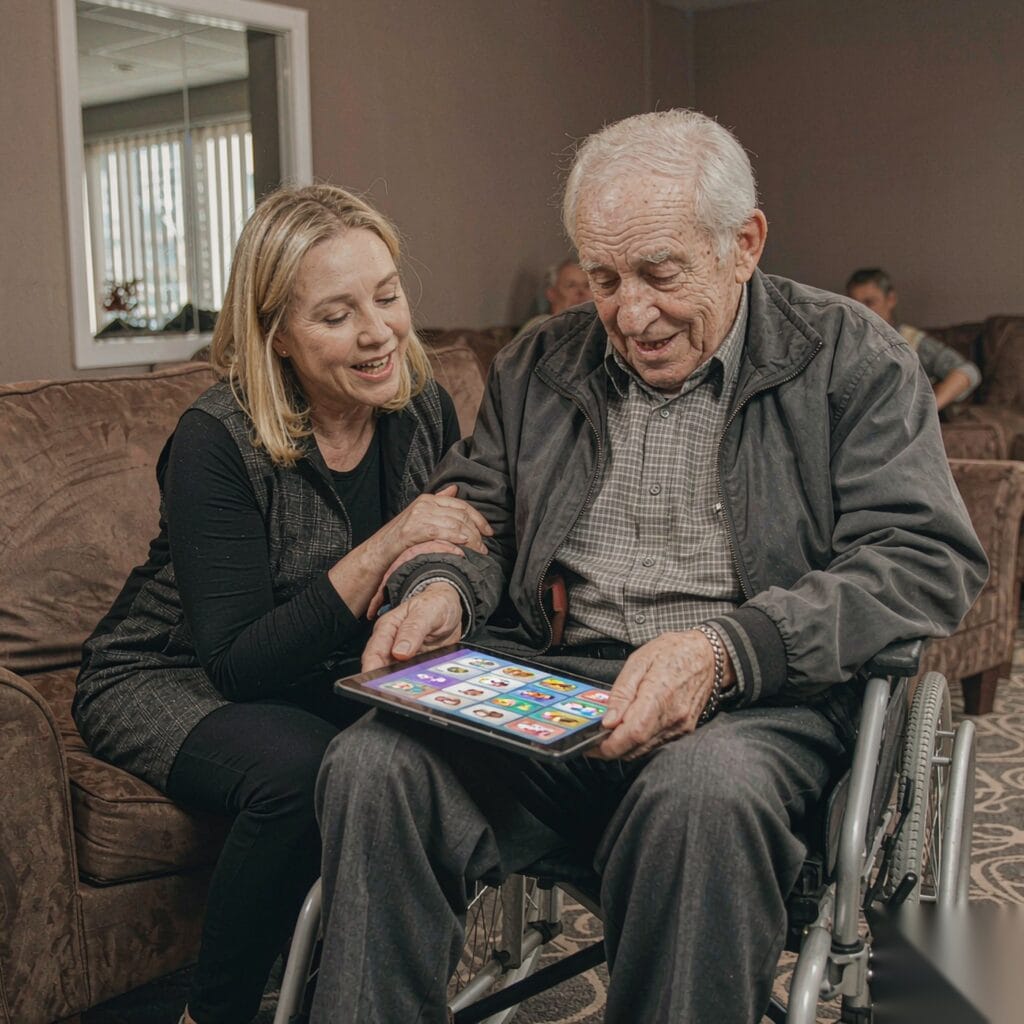
Games are the largest single reason searches like games for seniors in nursing homes exist. On a tablet they fall into three groups:
- Structured brain-training apps — Lumosity, Elevate and Peak adapt difficulty over time. Good for residents who want a challenge and can follow instructions.
- Reminiscence apps — designed to prompt conversation rather than test memory. My House of Memories (free, from National Museums Liverpool; iOS and Android) presents everyday objects and music from the 1920s–1980s, with a “read aloud” option. GreyMatters (free) is a personalised life-story book with photos, voice narration and music — note it is iOS-only. LifeBio Memory is cross-platform (iOS/Android) and adds voice recording to life-story prompts. Because Android tablets support My House of Memories and LifeBio Memory, a large-screen Android device loses nothing essential here.
- Low-pressure casual games — jigsaw, mahjong solitaire, matching pairs and Kahoot! quizzes. These work best as a group activity: the tablet is passed, or one person taps while everyone calls out answers.
A large screen matters here too. Split-screen on a 16″ tablet is genuinely usable; split-screen on a 10″ tablet is not.
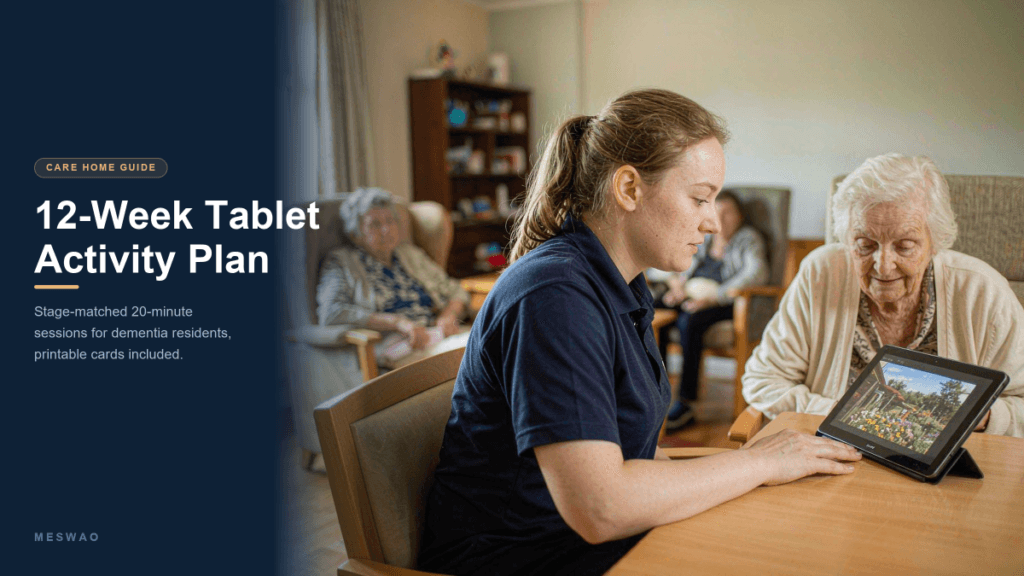
Knowing which apps exist is the easier half. The other half is structure — what staff actually do for twenty minutes on a Tuesday afternoon. We put that in a separate 12-week tablet activity plan for dementia residents: a repeatable session format, activities matched to early, middle and later stage, fallback options for the days nothing works, and a one-page printable card per resident.
3. Music and reminiscence therapy
Music is the most reliable engagement tool in dementia care, and a tablet is the cheapest way to deliver an unlimited, personalised supply of it. Build named playlists per resident — their wedding song, their era, their hometown artist — and play them on a screen large enough for the whole group to see the album art and lyrics. Free group karaoke and lyric videos on YouTube are widely used in activity sessions.
4. Shared photo albums and life-story work
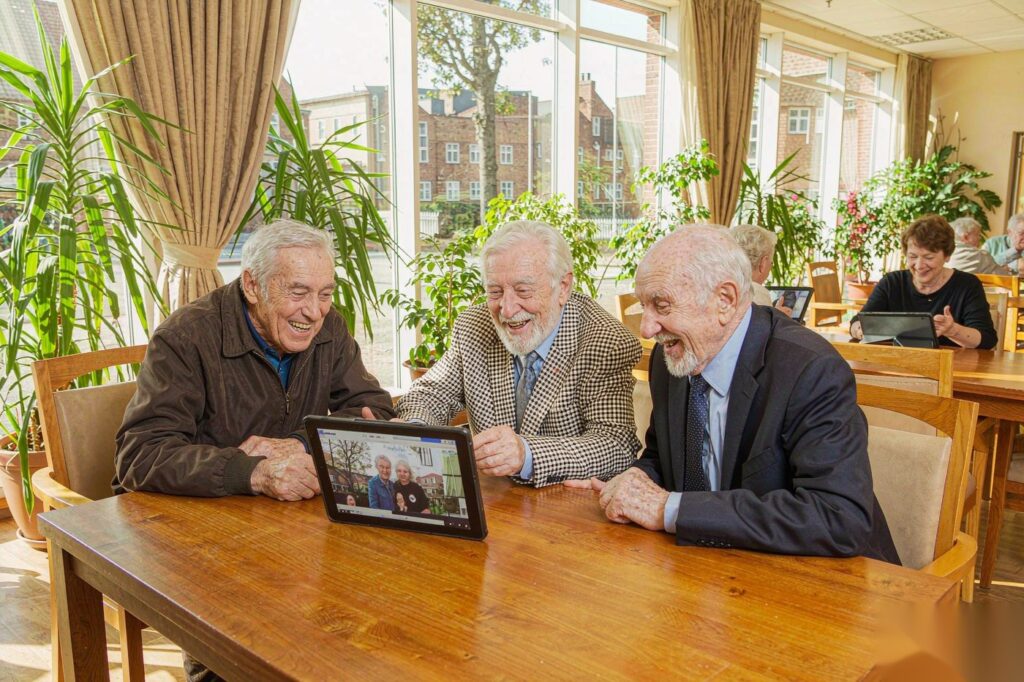
A cloud photo album (Google Photos works well) with a shared link means families can upload photos from anywhere and the lounge can display them in a slideshow. Combined with the large screen, this becomes a reminiscence tool: a 16″ display is big enough for three or four people to look at the same photo and start the conversation the photo is meant to start.
5. Reading, worship, and exercise — at readable size
Large-print books, audiobooks, daily services, streamed worship, chair-based exercise routines and guided meditation all become accessible when the text is genuinely large. This is where a bigger display and a high-contrast panel beat a small, high-resolution one.
6. Caregiver tools
Care planning, medication prompts, handover notes and resident-portal apps increasingly live on tablets. If a tablet is going to be used by staff, treat security and management as a first-class requirement, not an afterthought — see the setup section below.
The 7 specs that actually matter in a care home
Most tablet reviews rank chips and cameras. In a lounge, those barely register. Here is what does:
| # | Spec | Why it matters here | Target |
|---|---|---|---|
| 1 | Screen size (area, not inches) | Determines how many people can take part at once | ≥15.6″ for communal use |
| 2 | Brightness & contrast | Fluorescent louvers, big windows, glare | ≥350 nits, matte-friendly |
| 3 | Split-screen support | Two apps side by side — quiz + video, call + photos | Required |
| 4 | Weight & mounting | A shared tablet lives on a stand, not in a hand | Under ~1.5 kg + stand |
| 5 | Battery & always-on | Charging in a lounge is a daily staff task | ≥8 h screen-on |
| 6 | Security & multi-user mode | Residents, staff and volunteers all touch it | Guest profile + PIN, or MDM |
| 7 | Cost per unit, not per device | You are buying a fleet, not a gift | Lowest total for 4+ units |
Screen size is an area question, not a diagonal question
This is the part almost every care-home tablet guide skips, and it is the reason a “big” 13″ iPad can feel cramped in a group setting.
Screen area grows with the square of the diagonal, and aspect ratio changes the result. Measured in square centimetres:
| Device | Display size | Aspect | Screen area | vs. largest iPad |
|---|---|---|---|---|
| iPad Air / Pro (largest iPad available) | 13″ | 4:3 | ~523 cm² | 1.00× |
| Android tablet, entry large-screen | 14.1″ | 16:9 | ~548 cm² | 1.05× |
| Android tablet, mid | 15.6″ | 16:9 | ~671 cm² | 1.28× |
| Android tablet, largest practical | 16″ | 16:10 | ~742 cm² | 1.42× |
For reference, A4 paper is 623.7 cm², so a 16″ tablet covers about 1.19× the area of a sheet of A4 — hold a sheet of A4 up in front of the lounge group and that is roughly what everyone can see at once.
There is a hard ceiling here worth knowing: 13″ is the largest iPad, and as of 2026 there is no 17″ tablet on the market. If group visibility is your requirement, 16″ Android is currently the top of the range.
iPad vs large-screen Android tablet for a care home
| iPad (largest, 13″) | Large-screen Android (15.6″–16″) | |
|---|---|---|
| Maximum screen area | ~523 cm² | ~742 cm² (+42%) |
| Group visibility (4–6 people) | Tight | Comfortable |
| Entry price (US list, 2026) | $349 (11″ iPad A16), $799 (13″ iPad Air) | from $199 |
| Cost for a 4-room roll-out | ~$1,400–$3,200 | ~$796–$1,836 |
| Reminiscence app ecosystem | Deeper — GreyMatters is iOS-only | Good — My House of Memories & LifeBio Memory support Android |
| Multi-user / guest mode | Limited | Android guest + restricted profiles |
| Stands and wall mounts | Expensive, proprietary | Cheap, universal VESA |
| Best for | One resident, personal use | One lounge, shared use |
The honest summary: if you are buying a personal tablet for one resident who will hold it, an iPad is an excellent choice and the dementia-specific app selection is slightly deeper. If you are buying for a lounge, an activity room or a fleet of rooms, a large-screen Android tablet wins on the two things that decide whether the activity works: how many people can see the screen, and how many screens you can afford.
Which tablet for which room
Matching device to setting is the fastest way to keep a budget under control:
| Setting | Recommended | Screen area | Price (USD) |
|---|---|---|---|
| Bedroom, personal use, bedside arm | B1 14.1″ or B2 14″ | ~540–548 cm² | $199 / $209 |
| Activity room, 2–3 residents | B3 Basic 15.6″ | ~671 cm² | $379.98 |
| Activity room with heavier app use | B3 Pro 15.6″ | ~671 cm² | $409.98 |
| Main lounge, 4–6 residents, group calls | B5 Basic 16″ | ~742 cm² | $429.99 |
| Main lounge, flagship / most demanding | B5 16″ | ~742 cm² | $459.99 |
Browse the full range on our large-screen tablet category page. For a mixed deployment, the B5 Basic 16″ in the main lounge plus B1 14.1″ in individual rooms is the configuration that gets the most residents in front of a big screen per pound spent.
Setting up a shared care-home tablet in about 30 minutes
Repeat these steps for each device. On Android the whole process is roughly half an hour.
1. Create a “resident” profile, not a shared login. Set up a restricted profile or guest user for resident use. It keeps personal accounts, emails and payment methods off the lounge tablet entirely.
2. Turn the display up, permanently. Settings → Display → Font size: Largest, Display size: Largest, Brightness: manual, high, Screen timeout: 10 minutes (a short timeout means a resident’s screen goes dark mid-call).
3. Simplify the home screen. Put only 5–8 icons on the home screen — Video call, Photos, Games, Music, Read, YouTube — and rename them in plain language. Delete or hide everything else. Pinned shortcuts beat app drawers for residents with limited dexterity.
4. Pre-load the content while you still have the account. Before locking the profile down, sign in and prepare:
- a family photo album with a shared upload link,
- playlists per resident,
- two or three game apps already installed and tested,
- Zoom / Google Meet with the family’s meeting link saved as a favourite.
5. Set the kiosk or pinned-app mode if the tablet will be unattended. Android’s screen pinning (or a kiosk launcher) keeps residents inside one app and stops accidental purchases.
6. Protect it. A tempered-glass screen protector and a wipe-clean case are non-negotiable in an environment with shared surfaces and daily disinfectant. We stock protectors for 15.6″ tablets and 16″ tablets, plus a 16″ protective case.
7. Add a stand, then leave the tablet out. A tablet locked in a cupboard gets used twice a month. A tablet on a floor or table stand at eye level in the lounge gets used every day. Mounting is the cheapest way to increase usage.
8. Write a one-page card for staff. Wi-Fi name, how to start a video call, how to add a photo, who to call if it stops working. Laminated, taped inside the charging cupboard.
Setting up a tablet for an individual older adult rather than a shared one? Our step-by-step computer tablet setup and buying guide for the elderly covers the personal-use version of this checklist.
What it costs to equip a care home
Prices below are Meswao list prices in USD and exclude VAT, shipping and any care-home trade discount.
| Roll-out | Devices | Device cost | + stands & protectors | Indication |
|---|---|---|---|---|
| 1 communal tablet | 1 × B5 Basic 16″ | $429.99 | ~$60 | ~$490 |
| 4 rooms + 1 lounge | 4 × B1 14.1″ + 1 × B5 16″ | $1,255 | ~$180 | ~$1,435 |
| Full activities programme | 6 × B3 Basic 15.6″ + 2 × B5 16″ | $3,192 | ~$360 | ~$3,550 |
Compare that with the same roll-out on 13″ iPads — $799 per device before accessories on current US list prices — and the difference is the cost of a second room. (Apple has raised iPad list prices through 2026, so check live pricing before you commit a budget.)
Cost-saving notes that matter more than the sticker price:
- Large Android tablets use universal stands and VESA mounts; accessories are a fraction of proprietary iPad stands.
- Android supports multi-user profiles, so one device can serve several residents without several purchases.
- No subscription is required for the core activities — group calls, Google Photos, YouTube and most game apps are free. (We sell no subscription; nor should you pay for one.)
Common mistakes (and how to avoid them)
- Buying the smallest tablet “because it’s lighter.” In a lounge, screen area beats weight every time. Small tablets get used by one person and then abandoned.
- Leaving the standard home screen on. A wall of 40 icons is the single biggest reason residents give up on a tablet.
- No stand. Handheld shared tablets get dropped and then locked away.
- One shared login for the whole home. It breaks privacy, exposes payment methods, and makes the tablet look chaotic.
- Assuming residents need “simplified” content. Most want the same things everyone wants — family faces, familiar music, a photo they recognise.
- Skipping the screen protector. Replacement screens cost more than the protector you didn’t buy.
FAQ
For shared, group use, a large-screen Android tablet between 15.6″ and 16″ — a bigger display lets more residents join an activity at once, and the cost per device is roughly half to a third of a comparable iPad.
iPads are excellent personal devices for one resident and have a slightly deeper choice of dementia-specific apps. For shared lounges and multi-room roll-outs, large-screen Android tablets win on group visibility (up to ~42% more screen area than the largest iPad) and on total cost.
At least 15.6″ for four to six people around a table. A 16″ tablet covers about 742 cm² — roughly 1.19× a sheet of A4 — which is the practical measure of how much everyone can see simultaneously.
Both work. Features that help most are not platform-specific: a very large font size, a simplified home screen with few icons, high contrast, a stand at eye level, and apps built around reminiscence rather than memory testing.
Brain-training apps (Lumosity, Elevate, Peak), reminiscence and life-story apps (My House of Memories, LifeBio Memory — both cross-platform; GreyMatters is iOS-only), and low-pressure games such as jigsaw, mahjong solitaire, matching pairs and group quizzes with Kahoot!. Split-screen on a 15.6″–16″ tablet lets staff run a quiz alongside a video.
Put a large tablet on a stand at eye level in the lounge, use a group-capable app (Zoom, Google Meet or WhatsApp video), and keep a staff member nearby for the first minute. Meetings where everyone is already logged in before the call start are the ones that go well.
Devices start at $199 for a 14.1″ tablet and $429.99 for a 16″ communal tablet, plus roughly $60 per device for a stand and screen protector. A four-room plus lounge set-up works out around $1,435 before VAT and shipping.
Yes — Android supports multiple user profiles and guest mode, so each resident can have their own simple home screen and photo library without buying separate hardware. —
The one-page procurement checklist
Before you sign off a purchase, confirm:
- ☐ Display ≥15.6″ for any communal room (area, not just the diagonal)
- ☐ Split-screen supported
- ☐ Multiple user profiles / guest mode available
- ☐ Battery lasts a full activities day on one charge
- ☐ A stand or wall mount is included in the budget
- ☐ Screen protector + wipe-clean case included per device
- ☐ No subscription required for calls, photos, music or games
- ☐ Staff can add a photo or start a call in under a minute
- ☐ Total cost quoted per room, not per device
Meswao builds large-screen Android tablets from 14.1″ to 16″, priced from $199. For care homes and activity coordinators buying more than one device, contact us for fleet pricing. If you are equipping an individual resident instead, start with our guide to choosing a large-screen tablet for seniors or the hands-on 14.1″ model walkthrough.