




How to Use a Tablet for Sheet Music: Android Setup Guide (2026)

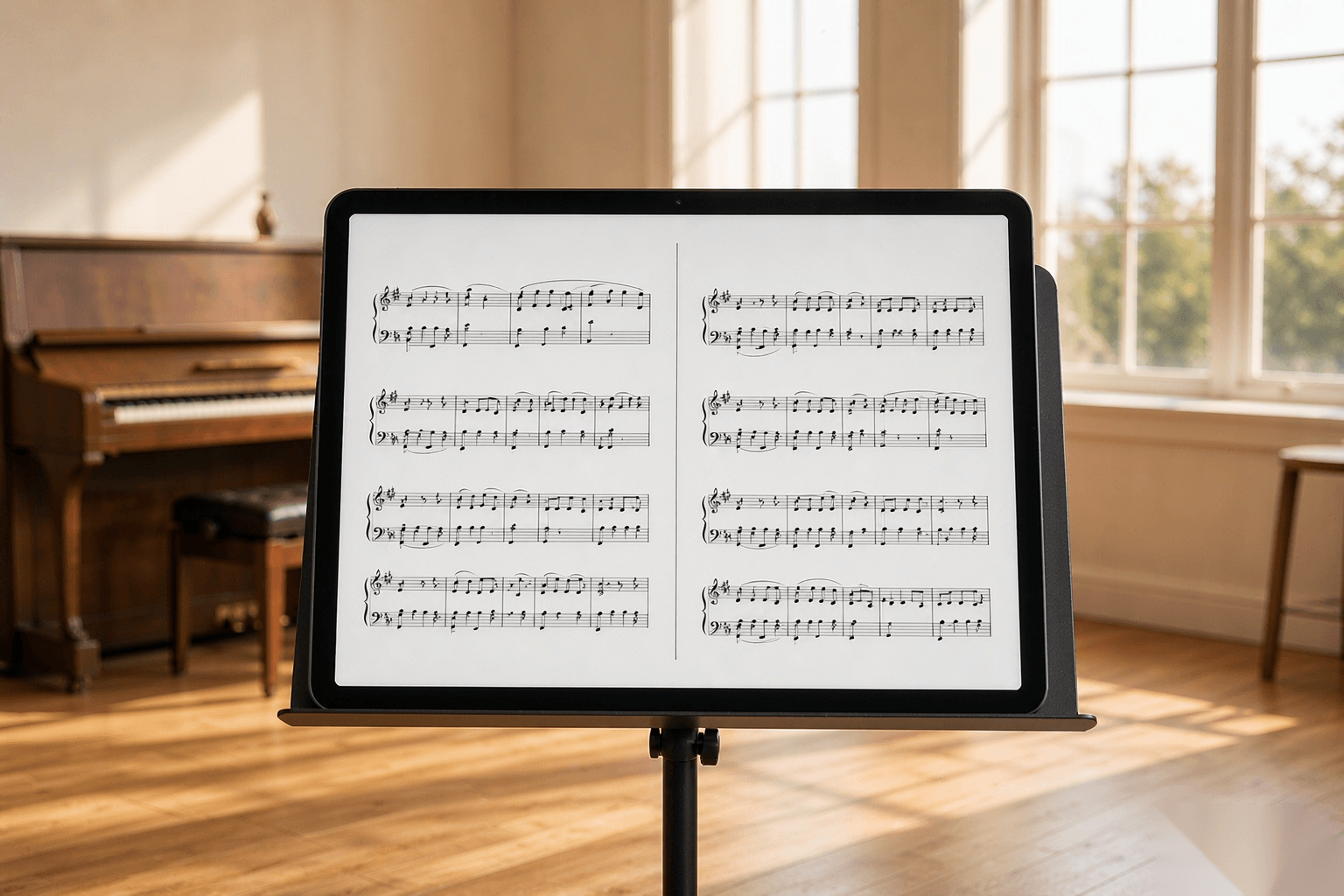
Almost every guide to playing from a tablet assumes you own an iPad. If you play from an Android tablet — or you are buying one specifically because you want a bigger screen than a 12.9-inch iPad — the setup advice you will find online mostly does not apply.
This guide covers the whole path: how much screen you actually need (with the numbers), which app to use, how to get your scores in, how to crop them so the notes fill the screen, and how to turn pages without letting go of your instrument. Every step works on a plain Android tablet.
The Short Version
- Screen: below 13 inches, single pages get cramped. For two-page spreads, 15.6 inches is the practical floor.
- App: use a score reader, not a PDF viewer. On Android that means MobileSheets or Piascore.
- Files: one PDF per piece, 300 DPI, straight and cropped.
- Crop margins: this single step buys you 15–25% more notation size.
- Pedal: pair a Bluetooth page-turner, then test it in the app — not in a settings menu.
- Stage-proof: Do Not Disturb on, auto-lock off, brightness around 50%.
What You Need Before You Start
| Item | What to get | Why it matters |
|---|---|---|
| Tablet | 10 inches minimum; 13 inches for single pages; 15.6 inches or larger for two-page spreads | Screen area, not diagonal, decides how readable the notation is |
| Stand | Rigid, height-adjustable, tilts back 15–20° | A tablet lying flat is unreadable; a wobbling stand is worse than paper |
| Sheet music app | MobileSheets or Piascore (Android) | Generic PDF viewers cannot crop, build setlists, or map a pedal |
| Page-turn pedal | Any Bluetooth pedal that pairs as a keyboard (AirTurn, PageFlip and similar) | Optional for practice, close to essential for performance |
| Your scores | PDFs from publishers or IMSLP, plus scans of anything you only own on paper | The app is only as good as the file you feed it |
Step 1: Pick a Screen Size You Can Actually Read From
Tablet marketing talks about the diagonal. Musicians care about something else: how large a page of A4 sheet music appears on the glass. Those are different numbers, and the gap between them is where most buying mistakes happen.
A standard sheet music page is A4: 21.0 × 29.7 cm. Fit that page onto a screen without cropping or distorting it, and you get a reading scale. Here is what the common sizes actually deliver.
| Screen | Physical size (cm) | Screen area | One A4 page | Two-page spread |
|---|---|---|---|---|
| 10.1″ 16:10 | 21.8 × 13.6 | 296 cm² (0.47× A4) | 65% | 46% |
| 12.9″ 4:3 (iPad Pro) | 26.2 × 19.7 | 515 cm² (0.83× A4) | 88% | 62% |
| 13″ 16:10 | 28.0 × 17.5 | 490 cm² (0.79× A4) | 83% | 59% |
| 14.1″ 16:9 | 31.2 × 17.6 | 548 cm² (0.88× A4) | 84% | 59% |
| 15.6″ 16:9 | 34.5 × 19.4 | 671 cm² (1.08× A4) | 93% | 65% |
| 16″ 16:10 | 34.5 × 21.5 | 742 cm² (1.19× A4) | 100%+ | 72% |
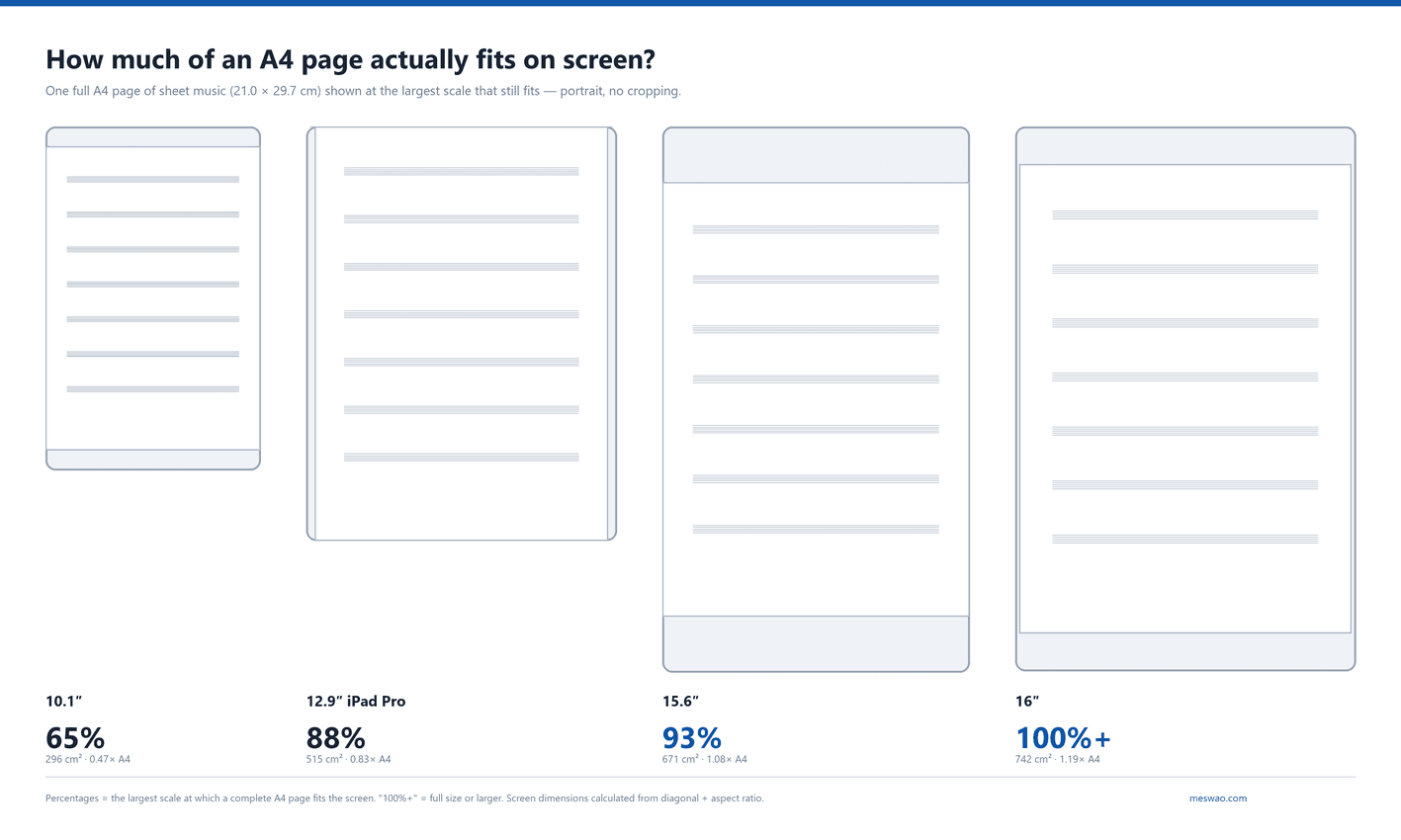
What this means in practice. A 10-inch tablet shows a page at roughly two-thirds size. A printed staff is about 7 mm tall; at 65% it becomes about 4.5 mm, which is where players start leaning in and losing their place. A 15.6-inch screen shows the same staff at about 6.5 mm, and a 16-inch screen renders a full A4 page at its original size or slightly larger.
The two-page problem. Piano, harp, accompaniment and most four-hand music is written to be read across a spread: 42.0 × 29.7 cm of paper. A 12.9-inch iPad manages that spread at about 62%. A 15.6-inch 16:9 tablet reaches 65%, and a 16-inch 16:10 reaches 72%. The difference sounds small until you are sight-reading a dense Chopin edition at tempo.
Aspect ratio matters as much as size. 16:9 and 16:10 screens are wide, which suits spreads but gives you less height for a single portrait page. 4:3 (most iPads) is the opposite. If you mostly read single pages, a 4:3 panel punches above its diagonal; if you read spreads, wide wins.
Practical recommendation. For lead sheets and chord charts, 10 inches is fine. For single-page classical repertoire, 13 inches is the comfort threshold. For two-page spreads without squinting, 15.6 inches is the realistic minimum, and 16 inches is genuinely better.
All of these dimensions are calculated from the diagonal and aspect ratio, not copied from spec sheets — the full conversion chart, including every size from 7 to 17 inches, is in our tablet screen size comparison.
Step 2: Choose an App That Treats a PDF Like a Score
A PDF reader shows you pages. A score reader gives you a library — setlists, annotations that stay attached to the file, margin cropping, half-page turns, and pedal mapping. The difference only becomes obvious when you try to perform with the wrong one.
On Android there are two realistic choices:
| App | Best for | Watch out for |
|---|---|---|
| MobileSheets | Large libraries, heavy annotation, pedal-driven performance | Paid, one-time; the interface is dense at first |
| Piascore | Free start, quick import, decent two-page view | Advanced features sit behind a subscription |
One thing worth stating plainly, because it is the single most common source of confusion: forScore is iOS-only. There is no Android build. If your reason for searching “forScore for Android” was that recommendation, the answer is MobileSheets or Piascore. We compared the Android options in detail in this Android sheet music app comparison.
Install one, and ignore the other until you have imported at least ten pieces. Switching apps mid-way is how people end up with annotations split across two libraries.
Step 3: Get Your Music Into the App
There are three sources, and they behave differently.
Public domain scores
IMSLP has an enormous catalogue of out-of-copyright editions. Download the PDF, then import it into the app rather than opening it in a browser — you want the file in the library, not in a download folder.
Publisher PDFs
Purchased downloads are usually clean and already cropped. Check the orientation before you import: some publishers export single pages sideways, which forces you to rotate the tablet for one piece and back again for the next.
Your paper library
Scan at 300 DPI, in greyscale, straight. A phone scanning app is good enough for a handful of pieces; for a whole binder, a flatbed scanner is faster and produces more even lighting. Save one PDF per piece, named so you can find it later:
Composer - Title - Key - Edition.pdf
That naming pattern survives searches, sorts sensibly, and — importantly — most score readers read the filename when they import, so your metadata arrives half-filled.
Do not scan at a higher resolution than you need. A 600 DPI scan of a 40-page sonata can take a visible second to render each page turn, which is exactly the wrong second.
Step 4: Crop the Margins
This is the step almost everyone skips, and it is free screen size.
Printed scores carry generous white margins designed for binding and for fingers holding a page. On a screen, those margins are wasted pixels. Cropping a typical edition to the edge of the staves buys back 15–25% of the display width — which is the difference between reading comfortably and leaning forward.
- Open the piece in the app and enter crop or page-edit mode.
- Drag the boundary to just outside the outermost staff, keeping any rehearsal marks and page numbers you actually use.
- Apply to the whole document if the edition is consistent, then check two or three pages individually.
- Skip the first page if it is a title page — cropping it to the staves makes it unreadable.
Crop once. Every decent score reader remembers the crop per file, so this is a one-time cost per piece, not per session.
Step 5: Set Up Hands-Free Page Turns
There are four ways to turn a page, and they are not interchangeable.
| Method | How it works | Good for | Limitation |
|---|---|---|---|
| Tap zones | Tap the right or left edge of the screen | Practice, sight-reading, short pieces | Requires a free hand at the wrong moment |
| Bluetooth pedal | Pairs as a keyboard; sends next/previous page | Performance, both hands occupied | One more battery to charge |
| Auto-scroll | Page scrolls at a fixed speed | Slow, steady accompaniments | Drifts out of sync the moment you slow down |
| Half-page turn | Advances half a screen at a time | Dense music on a smaller screen | Doubles the number of turns |
Pairing a pedal, in order:
- Put the pedal in pairing mode and pair it from the tablet’s Bluetooth settings. It will usually appear as a keyboard or media remote, not as a “page turner”.
- Open your score reader and go to its pedal or key-mapping settings.
- Press each pedal switch and confirm the app registers next page and previous page — if it registers nothing, the app is listening for a different key than the pedal sends.
- Test with the tablet in the stand, at the angle you will actually perform at. Pedal problems are almost always cable-or-angle problems, not software problems.
If you use auto-scroll instead, calibrate it against a metronome rather than by feel. Set the speed during a run-through, not during a performance.
Step 6: Stage-Proof the Tablet
A tablet that behaves in the practice room can still fail on stage in four predictable ways.
- Notifications. Turn on Do Not Disturb and, on Android, disable notification pop-ups on the lock screen too. A message banner over bar 32 is not recoverable.
- Auto-lock. Set the screen timeout to the longest option, or use the app’s keep-screen-on setting. Ten minutes into a slow movement, the screen will otherwise dim.
- Brightness. Around 50% is usually right under stage light; full brightness causes glare on glossy panels and drains battery faster. If your tablet has an adaptive brightness toggle, turn it off — you do not want the sensor reacting to a spotlight sweep.
- Power. A two-hour rehearsal with the screen on is a real battery load. Charge before, and carry a power bank rather than trusting the percentage.
One more: know how to advance a page manually. If the pedal disconnects or the app freezes, you need the tap zone to still work. Check that before the first downbeat, not during it.
Practice Setup vs Performance Setup
These are two different configurations, and treating them as one is why some players find tablets fiddly.
| Setting | Practice | Performance |
|---|---|---|
| Page layout | Two-page spread — you can see what is coming | Single page or half-page turns — larger notation, fewer distractions |
| Page turning | Tap, or auto-scroll while working a passage | Bluetooth pedal only |
| Annotations | On — fingerings, bowings, reminders | Hidden if the marks distract you under pressure |
| Connectivity | Wi-Fi on for cloud sync | Wi-Fi and Bluetooth-off for anything not needed; airplane mode is safest |
| Backup | None needed | A second device, or a printed copy of the hardest page |
Common Problems and Fixes
| Problem | Likely cause | Fix |
|---|---|---|
| Page turns feel slow | Oversized scan, or heavy PDF compression on render | Re-scan at 300 DPI greyscale; flatten layered PDFs |
| Pedal does nothing in the app | Pedal sends a key the app is not listening for | Remap in the app’s pedal settings; test outside the settings menu |
| Glare washes out the page | Glossy panel plus overhead light | Lower brightness, tilt the stand, or use a matte screen protector |
| Notation is too small | Uncropped margins, or a spread on a 10-inch screen | Crop to the staves; switch to single page on smaller screens |
| Crop tool will not apply to the whole piece | Pages have different scan offsets | Re-scan as one document, or crop in batches of similar pages |
| Battery drains mid-rehearsal | Full brightness, Wi-Fi on, screen never sleeping | 50% brightness, airplane mode, power bank |
Frequently Asked Questions
Can I use any Android tablet for sheet music?
Yes, with one caveat: screen size decides readability more than processor does. A cheap 10-inch tablet will run a score reader perfectly well, but a page of A4 repertoire will render at about 65% scale. If you read dense classical editions, spend the budget on screen area rather than on a faster chip.
What is the best tablet size for reading sheet music?
13 inches is the comfort threshold for single pages; 15.6 inches is the practical minimum for two-page spreads; 16 inches renders a full A4 page at 100%. Anything below 11 inches forces you to crop aggressively or zoom.
Is forScore available on Android?
No. forScore is iOS-only. The closest Android equivalents are MobileSheets (paid, deep feature set) and Piascore (free tier, subscription for advanced features).
Do I need a Bluetooth pedal?
Not for practice. For performance, yes — or at least a plan for turning pages without a free hand. Pedals pair as keyboards, which means almost any score reader can map them.
How do I get my paper sheet music onto the tablet?
Scan at 300 DPI in greyscale, straighten each page, and save one PDF per piece. Higher resolution rarely helps and slows down page turns. A phone scanning app is adequate for a few pieces; a flatbed scanner is better for a whole library.
Should I use portrait or landscape?
Portrait for single pages and lead sheets, landscape for two-page spreads. Most score readers let you set this per file, so you can mix without changing a global setting.
How many pieces fit on a tablet?
Storage is rarely the limit — a 300 DPI greyscale PDF of a 40-page sonata is a few megabytes. A 64 GB tablet holds thousands of pieces. The real constraint is library organisation, which is why setlists and consistent filenames matter more than storage.
Can a tablet replace paper on stage?
For most working musicians, yes — with a pedal, a charged battery, and a backup plan. The remaining objections are usually about glare, battery anxiety, and the fear of a freeze, all of which the setup above addresses.
Related Reading
- Tablet screen size comparison: 10, 14 and 15.6 inches in cm — the full inch-to-cm chart behind the numbers above.
- Best Android sheet music apps — the app comparison in full.
- Why a 15.6-inch screen makes practice easier — the hardware side of the same question.
- What size tablet is best for reading sheet music — 10 vs 13 vs 15.6 inches, side by side.
Disclosure: we sell large-screen Android tablets, including 15.6-inch and 16-inch models. The measurements in this guide are geometric calculations from screen diagonal and aspect ratio, and apply to any tablet of the same size and ratio.