


Best Note-Taking Tablet in 2026: Bigger Screens, Better Notes


Quick answer
The best note-taking tablet in 2026 is decided less by brand than by writing surface. If your notes live inside textbooks, lecture slides and problem sets, a 15.6- or 16-inch Android tablet gives you 1.07 to 1.19 times the usable area of an A4 sheet: enough to keep a full page and a notes column open at the same time. If you mostly sketch mind maps on the move, an 11-inch tablet with an active pen is lighter and cheaper. This guide compares note-taking tablets by screen area, explains honestly what a stylus can do on Android, and covers five study workflows where a large canvas stops being a luxury.
What counts as a note-taking tablet in 2026
Three product families are sold under the same phrase, and they solve different problems.
| Class | Typical size | Best at | Trade-off |
|---|---|---|---|
| E-ink writing tablet | 10.3 to 13.3 inch | Distraction-free handwriting, weeks of battery, paper-like feel | Slow refresh, limited apps, no colour video, higher price per inch |
| Tablet with an active pen | 11 to 13 inch | Pressure-sensitive sketching, handwriting recognition, wide app ecosystem | Smaller canvas, pen sold separately, premium pricing |
| Large-screen Android tablet | 15.6 to 16 inch | Full-page PDFs, split-screen lectures, A4-sized notes, video and reading on one device | Not a one-hand device, passive stylus only, needs a stand on a desk |
A digital note taking tablet is therefore not a single specification. Choosing a tablet for note taking comes down to which of these three jobs you actually have. If you want to write in a notebook-shaped app and nothing else, an e-ink device is the cleanest answer. If you need a note taking tablet with pen pressure for art, an iPad or a Samsung tablet with an S Pen is the right tool. But if the job is studying: reading, annotating, organising, and keeping a lecture and its notes visible together, the limiting factor is area, not pressure sensitivity.
The one spec that decides how much you can write
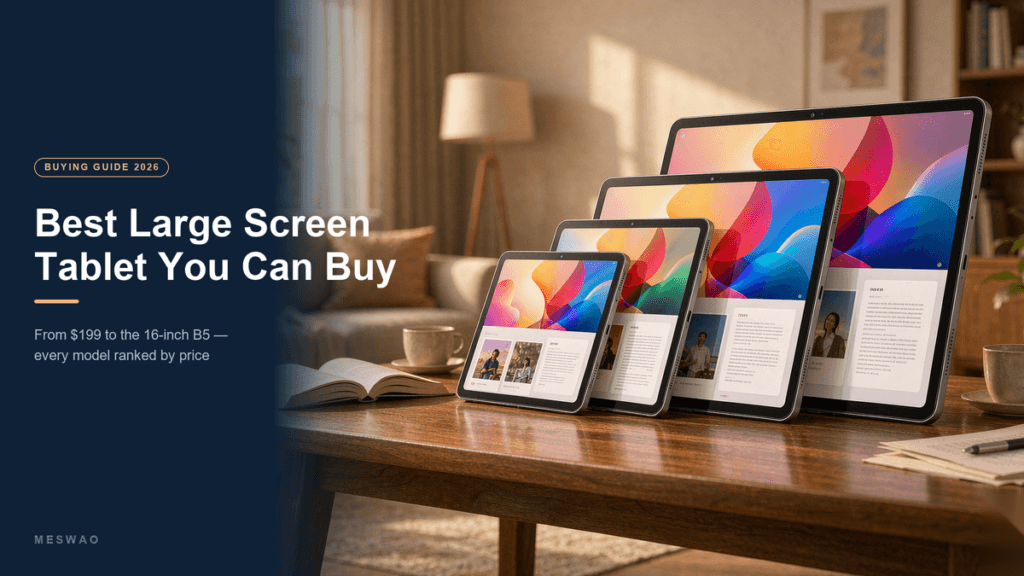
Screen diagonal is a marketing number. What your hand actually experiences is the rectangle you can write inside, and that rectangle grows with the square of the diagonal, not linearly. A 16-inch 16:10 panel carries roughly twice the area of an 11-inch 4:3 panel, even though the diagonal looks only 45 per cent longer.
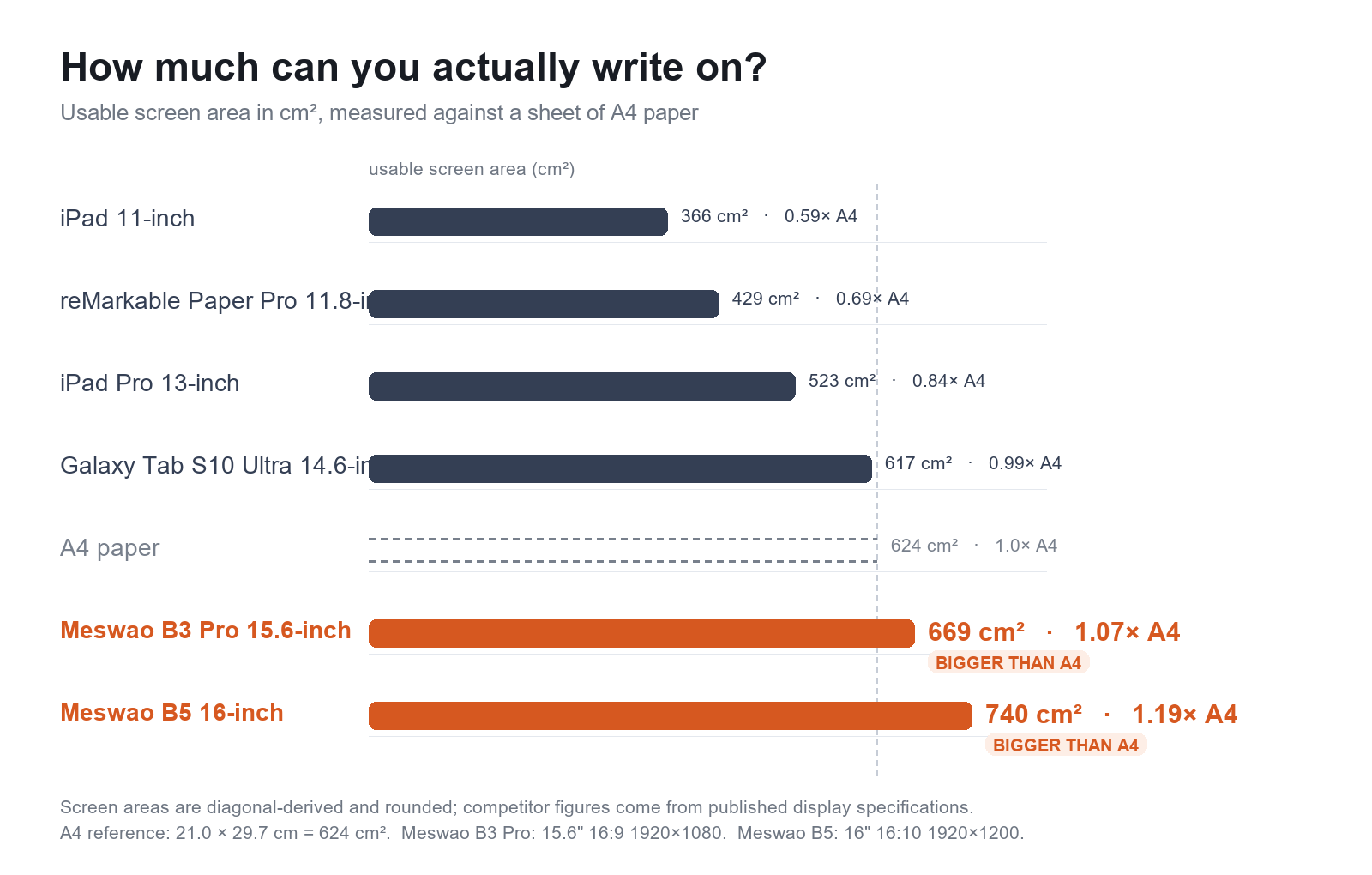
Measured against a sheet of A4 paper (21.0 x 29.7 cm, 624 cm²), the gap becomes concrete:
| Device | Screen | Aspect ratio | Usable area | Versus A4 |
|---|---|---|---|---|
| iPad 11-inch | 11 inch | 1.43 | approx. 366 cm² | 0.59x |
| reMarkable Paper Pro | 11.8 inch | 1.35 | approx. 429 cm² | 0.69x |
| iPad Pro 13-inch | 13 inch | 1.33 | approx. 523 cm² | 0.84x |
| Galaxy Tab S10 Ultra | 14.6 inch | 1.60 | approx. 617 cm² | 0.99x |
| A4 paper | 21.0 x 29.7 cm | 1.41 | 624 cm² | 1.00x |
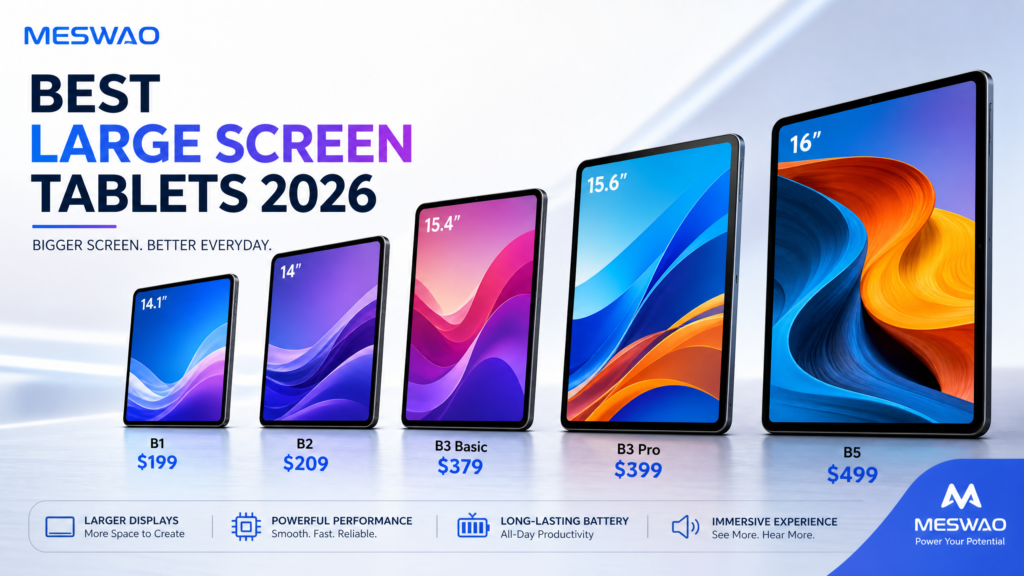
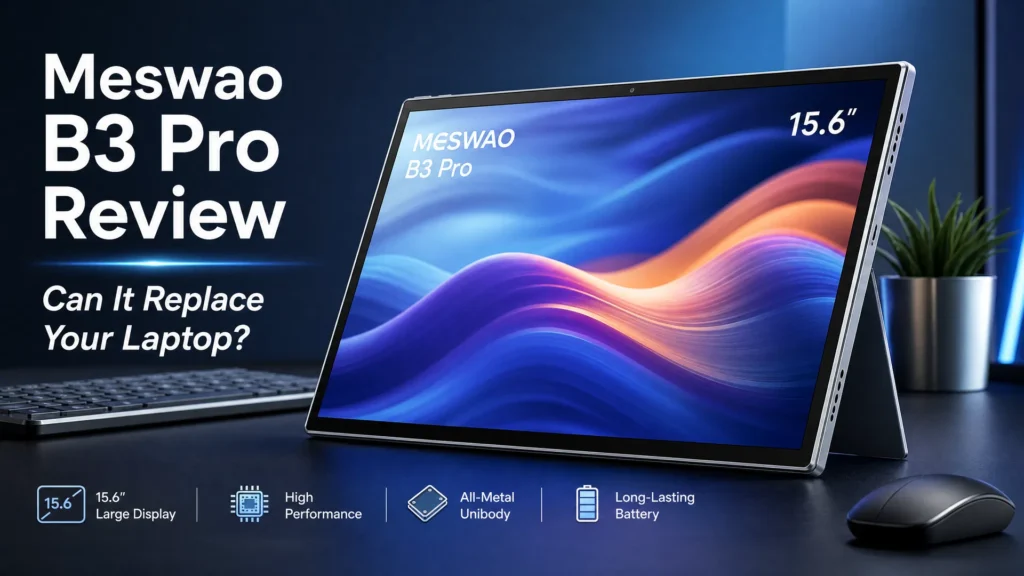
| Meswao B3 Pro | 15.6 inch | 16:9 | 669 cm² | 1.07x |
| Meswao B5 | 16 inch | 16:10 | 740 cm² | 1.19x |
Competitor areas are derived from published display specifications and rounded; the A4 and Meswao figures are exact for the panels listed. Two conclusions follow. First, most 11- to 13-inch tablets are smaller than a sheet of A4, so a full textbook page either shrinks below reading size or forces you to scroll while your hand is already busy writing. Second, a 15.6-inch or 16-inch screen is the smallest format where an A4 page and a margin for notes can coexist without compromise.
That is why a note taking tablet with a larger canvas behaves differently in practice: the page stops moving under your stylus.
Handwriting on Android: what a capacitive stylus can and cannot do
Most large-screen Android tablets, including ours, ship with or sell a capacitive stylus rather than an active pen. That distinction matters more than any spec sheet, so here is the honest version.
What a capacitive stylus handles well
- Annotating PDFs and textbooks: highlighting, underlining, circling, margin comments
- Marking up lecture slides that were exported as PDFs
- Handwriting short notes in Microsoft OneNote, Xodo, Flexcil, Squid or similar apps
- Signing forms, filling worksheets, ticking checklists
- Sketching diagrams, flowcharts and quick graphs in class
- Precise tapping in apps that assume a finger, especially on a 15.6-inch screen
Where a capacitive stylus stops
- No pressure sensitivity: every stroke has the same weight unless the app fakes it with speed
- No tilt shading and no palm rejection, so you write with your palm lifted rather than resting on the glass
- Handwriting-to-text works, but accuracy depends on the app, not the pen
- Not suitable for professional illustration, calligraphy or anywhere you need 4,096 pressure levels
If your study workflow depends on pressure-sensitive penmanship, buy an iPad with an Apple Pencil or a Samsung tablet with an S Pen; that is a real requirement and a large Android tablet will not fake it. If your workflow is annotate, organise, revise and write legible study notes, a passive stylus on a big screen is usually enough, and you keep one device for reading, notes and video.
Five study workflows that need a bigger canvas
1. Annotating full-page PDF textbooks
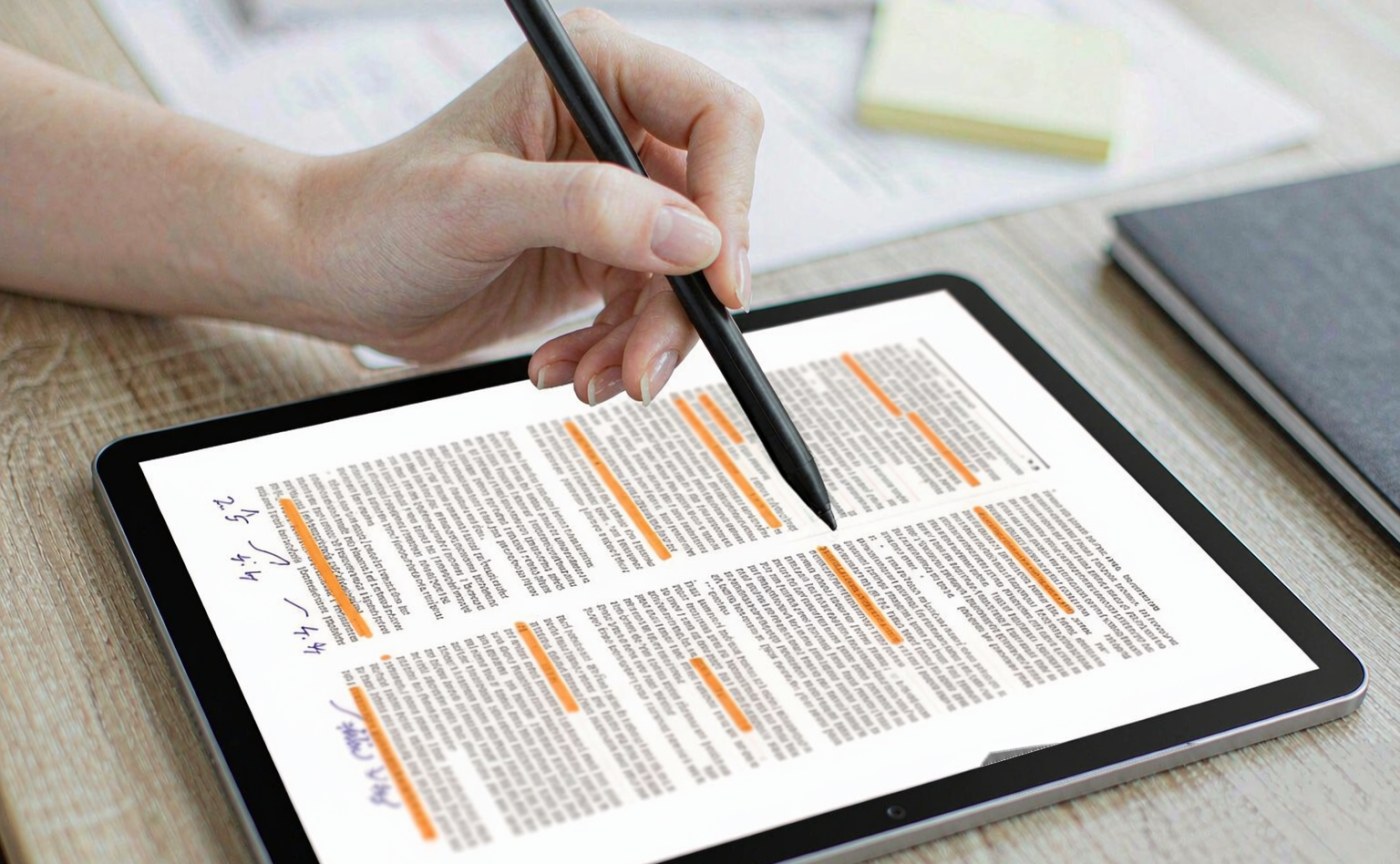
Course readings arrive as A4 PDFs. On an 11-inch tablet you zoom in to read, then zoom out to keep context, and your annotations end up scattered across zoom levels. On a 15.6-inch screen the page fits at a readable scale with room left for a margin, so highlight and comment stay visually tied to the paragraph they belong to.
2. Running a lecture and your notes side by side
Android handles split-screen and freeform windows natively. With 669 to 740 cm² of glass, a slide deck on the left and a notes app on the right both stay usable; each half is still larger than a phone screen. On smaller tablets the same split leaves two narrow columns, and most students give up and switch apps instead.
3. Working problem sets without scrolling
Mathematics, physics and accounting problems are two-dimensional: a diagram or a graph plus the working that refers to it. A wider canvas lets the reference material and the derivation sit in one view, which is the main practical difference between writing on paper and writing on a small tablet.
4. Building revision maps that fit one screen
Mind maps collapse as soon as they exceed the viewport, because you can no longer see the shape of the argument. A 16:10 16-inch panel keeps a full topic map, from central concept to third-level branch, visible at once.
5. Practising from music scores
Score annotation has the same geometry problem as textbooks, doubled: two staves per system, fingerings in the margin, and a page turn in the middle. Our guide to sheet music apps for Android tablets covers the software side; the hardware requirement is simply a screen wide enough for a full system without scrolling.
Meswao B3 Pro and B5 as note-taking tablets
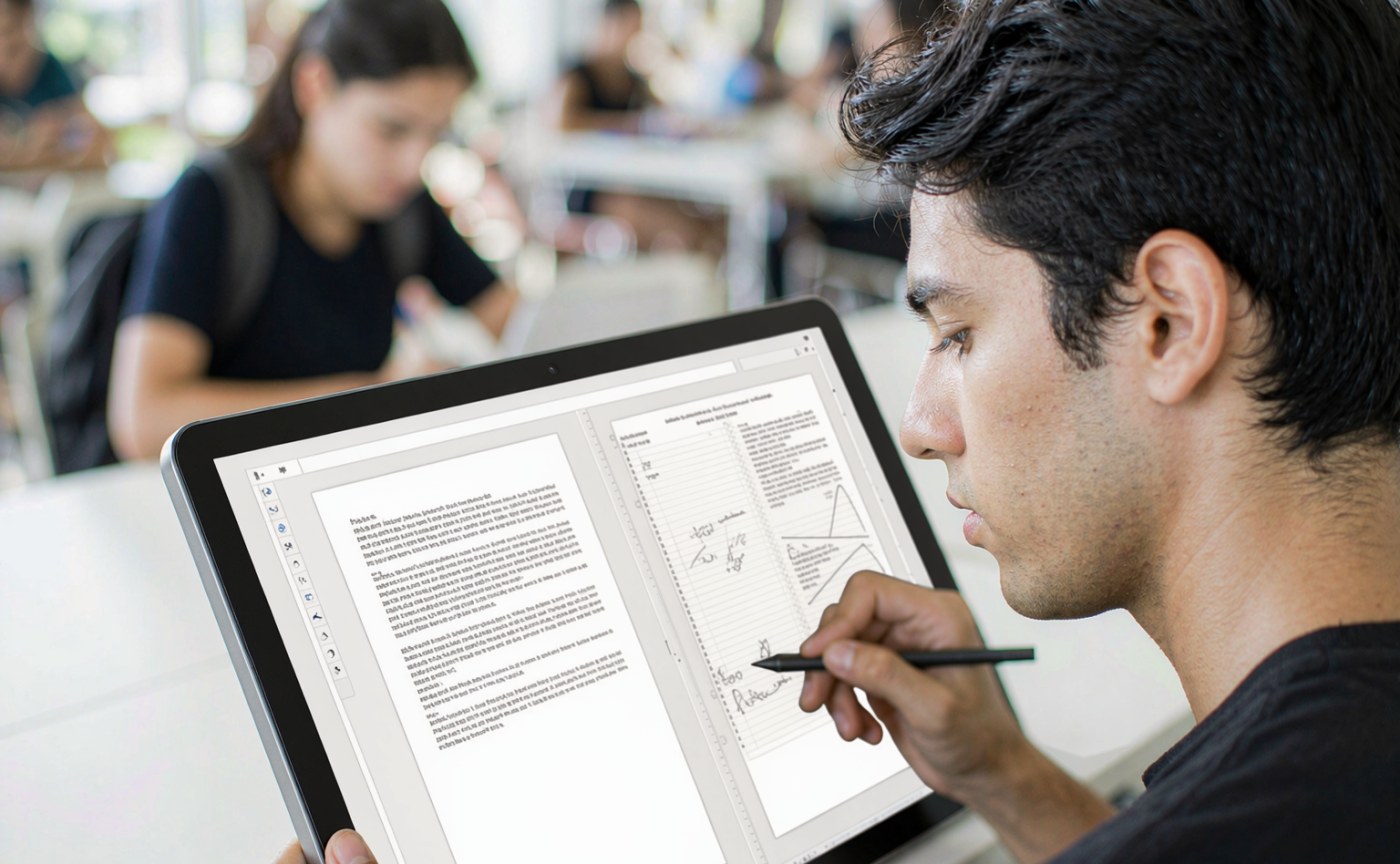
Both models are built around the same idea: give the page room. They are not ultra-portable note takers, and we do not position them as such. They are desk and lecture-hall devices that replace a stack of paper plus a reading tablet.
| Specification | Meswao B3 Pro | Meswao B5 |
|---|---|---|
| Screen | 15.6 inch, 1920 x 1080, 16:9 | 16 inch, 1920 x 1200, 16:10 |
| Usable area | 669 cm² (1.07x A4) | 740 cm² (1.19x A4) |
| Operating system | Android 16 | Android 16 |
| Memory and storage | 256 GB storage | 16 GB RAM, 256 GB storage |
| Battery | 12,000 mAh, 30 W charging | 12,000 mAh, 30 W charging |
| Streaming | Widevine L1, Full HD | Widevine L1, Full HD |
| Stylus | Capacitive stylus, available separately | Capacitive stylus, available separately |
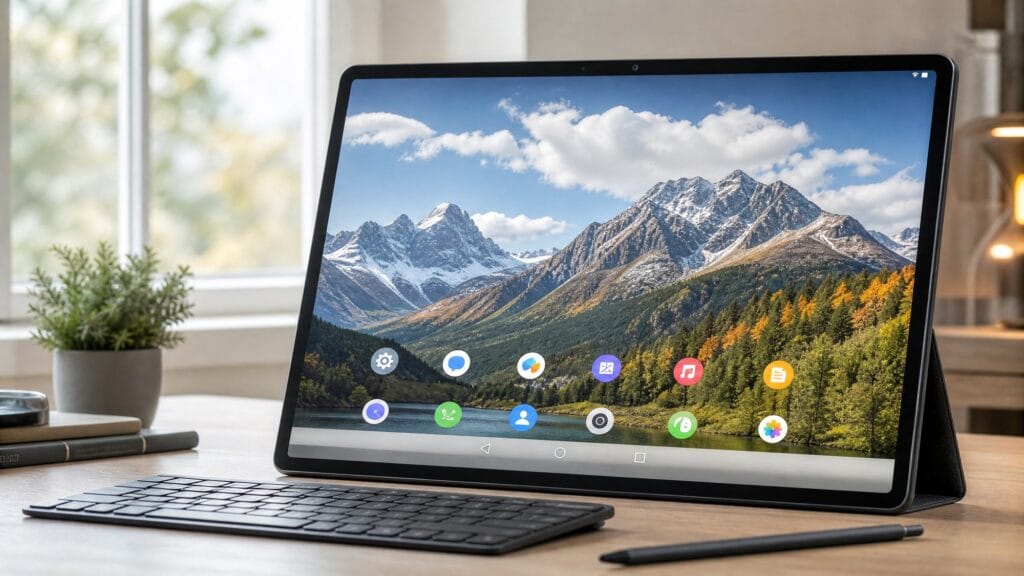
| Desk setup | Foldable Bluetooth keyboard, 360-degree stand, case and screen protector, available separately | Same accessory kit |
Three practical notes from using them for study work. First, pair the tablet with the 360-degree stand for long writing sessions; a 15.6- or 16-inch panel is not comfortable to hold in one hand for an hour. Second, the foldable keyboard turns the same device into the machine you type essays on, which is why the student tablet comparison treats screen size as the deciding variable. Third, if you are choosing between the two, take the 16-inch B5 when you mostly annotate A4 documents, and the 15.6-inch B3 Pro when 16:9 video lectures matter as much as notes.
How to choose a note-taking tablet
Answer three questions in order; they eliminate most of the market.
- Do your notes need an A4 page or larger? If yes, a 15.6- or 16-inch tablet is the entry ticket, and everything smaller is a compromise you will feel daily.
- Do you need pressure-sensitive pen input? If yes, buy an iPad with an Apple Pencil or a Samsung tablet with an S Pen. Do not expect a capacitive stylus to replace them.
- Do you write standing, walking or on a train? If yes, a 10- to 11-inch tablet wins on weight, and the large canvas is the wrong tool.
If your answers are A4, no, and desk, a large-screen Android tablet is the most area per dollar you can buy, and the screen size comparison shows exactly where each format lands.
Frequently asked questions
What is the best tablet size for note taking?
It depends on what you are annotating. If you write on blank pages or mind maps, 11 to 13 inches is enough and easier to carry. If you annotate A4 textbooks, slides and problem sets, 15.6 to 16 inches is the smallest format where a full page and a notes margin stay visible together. Our size comparison guide puts every common format next to a sheet of A4.
Can you take handwritten notes on an Android tablet?
Yes. Apps such as Microsoft OneNote, Xodo, Flexcil and Squid accept stylus or finger input and convert handwriting to text. With a capacitive stylus you write with your palm lifted, since there is no palm rejection, and stroke weight does not vary with pressure. For study notes and annotation that is workable; for calligraphy or illustration it is not.
Is a 15.6-inch tablet too big for note taking?
It is too big to hold in one hand, and too big for a train tray table. It is not too big for a desk, a lecture hall or a library, which is where most note taking happens. Paired with a stand, the extra area is what makes full-page annotation and split-screen study possible in the first place.
Do I need a special pen for a note-taking tablet?
It depends on the tablet. iPads and Samsung tablets need their own active pens for pressure sensitivity and palm rejection. Large-screen Android tablets such as the Meswao B3 Pro and B5 use a capacitive stylus, which needs no pairing, no battery and no charging, and works with any app that accepts touch.
Which apps work best for digital note taking on Android?
For PDF annotation, Xodo and Flexcil are the most direct. For general notes and cross-device sync, Microsoft OneNote. For freeform sketching, Squid. For typing and formatting coursework, Google Docs and Microsoft Word in split-screen next to your notes app.
Is a large note-taking tablet also good for reading textbooks?
That is its main advantage. A 15.6- or 16-inch panel displays an A4 PDF at close to native scale, so reading, highlighting and margin notes happen on one screen instead of three zoom levels. The same screen also handles Full HD lecture video on Widevine L1.
Related Meswao resources
- Best tablet for students in 2026: the wider buying guide this article supports
- Tablet screen size comparison, 10 to 15.6 inch: every format measured against A4
- Best large-screen tablets 2026, tested and ranked: the flagship roundup
- Meswao B5 16-inch tablet: 740 cm² of writing surface
- Meswao B3 Pro 15.6-inch tablet: the 16:9 alternative for video-heavy study
- Tablet accessories: stylus, keyboard, stand and case
Final verdict
In 2026 the note-taking tablet market has split along one line: devices that make writing pleasant, and devices that make the page big enough to work on. If you need pen pressure, buy an active-pen tablet and accept the smaller canvas. If you need to annotate A4 material, keep a lecture and its notes side by side, and revise from maps that fit on one screen, then screen area is the spec that decides whether the workflow survives contact with a real semester. On that measure, a 15.6- or 16-inch Android tablet is the most direct replacement for a stack of paper, and the honest limit is the stylus: capable for annotation, not a substitute for an active pen.